Open RedMind AI from the Autopilot menu
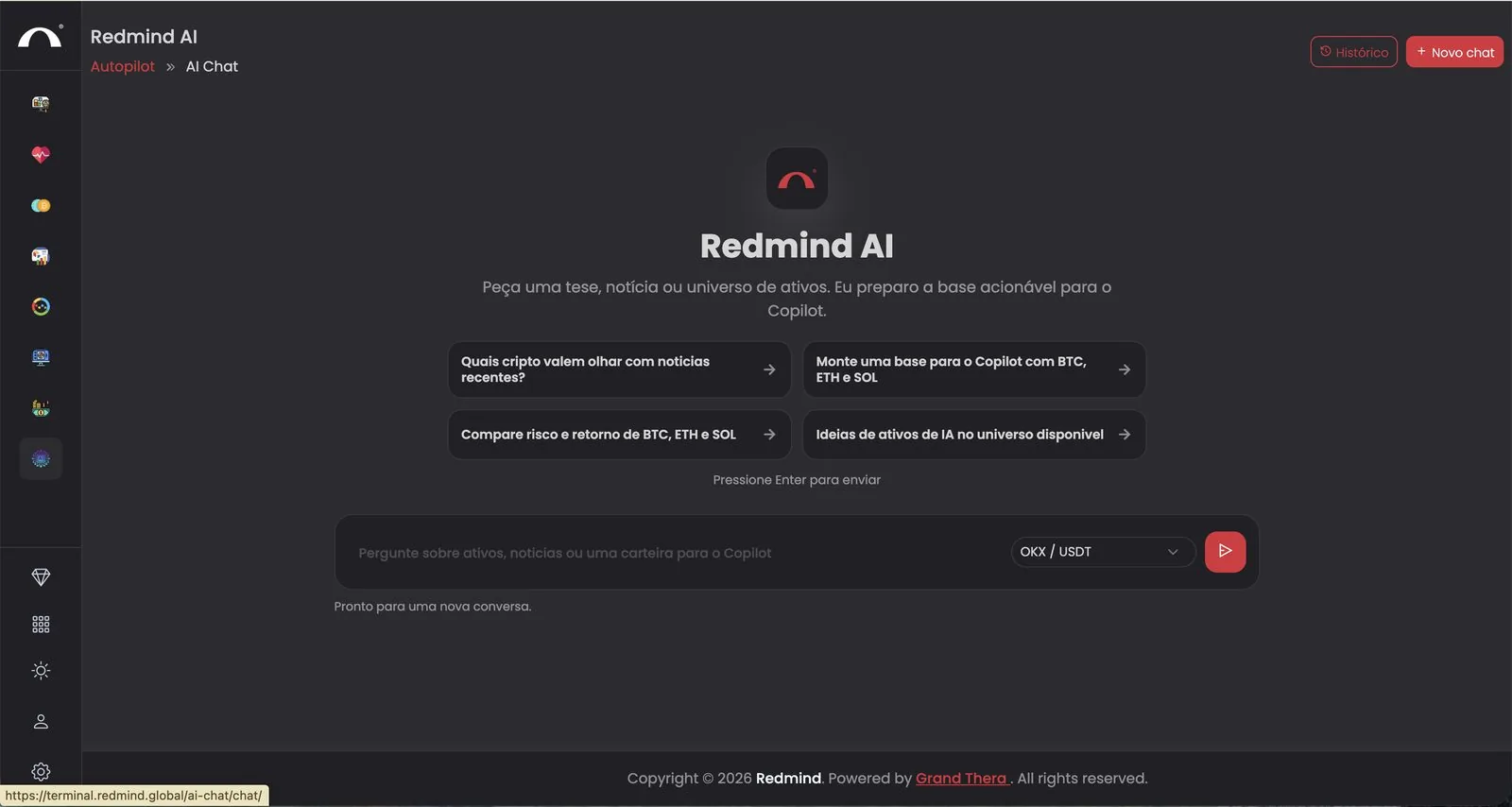
In the left sidebar, go to Autopilot → AI Chat. You see the RedMind AI screen with 4 suggested prompts.
At the top, make sure the OKX / USDT exchange is selected (or choose another connected exchange).
Use RedMind AI to generate a portfolio from a plain-language request, then work through the 5 phases: Portfolio, Risk, Capacity, Review, and Execution.

In the left sidebar, go to Autopilot → AI Chat. You see the RedMind AI screen with 4 suggested prompts.
At the top, make sure the OKX / USDT exchange is selected (or choose another connected exchange).

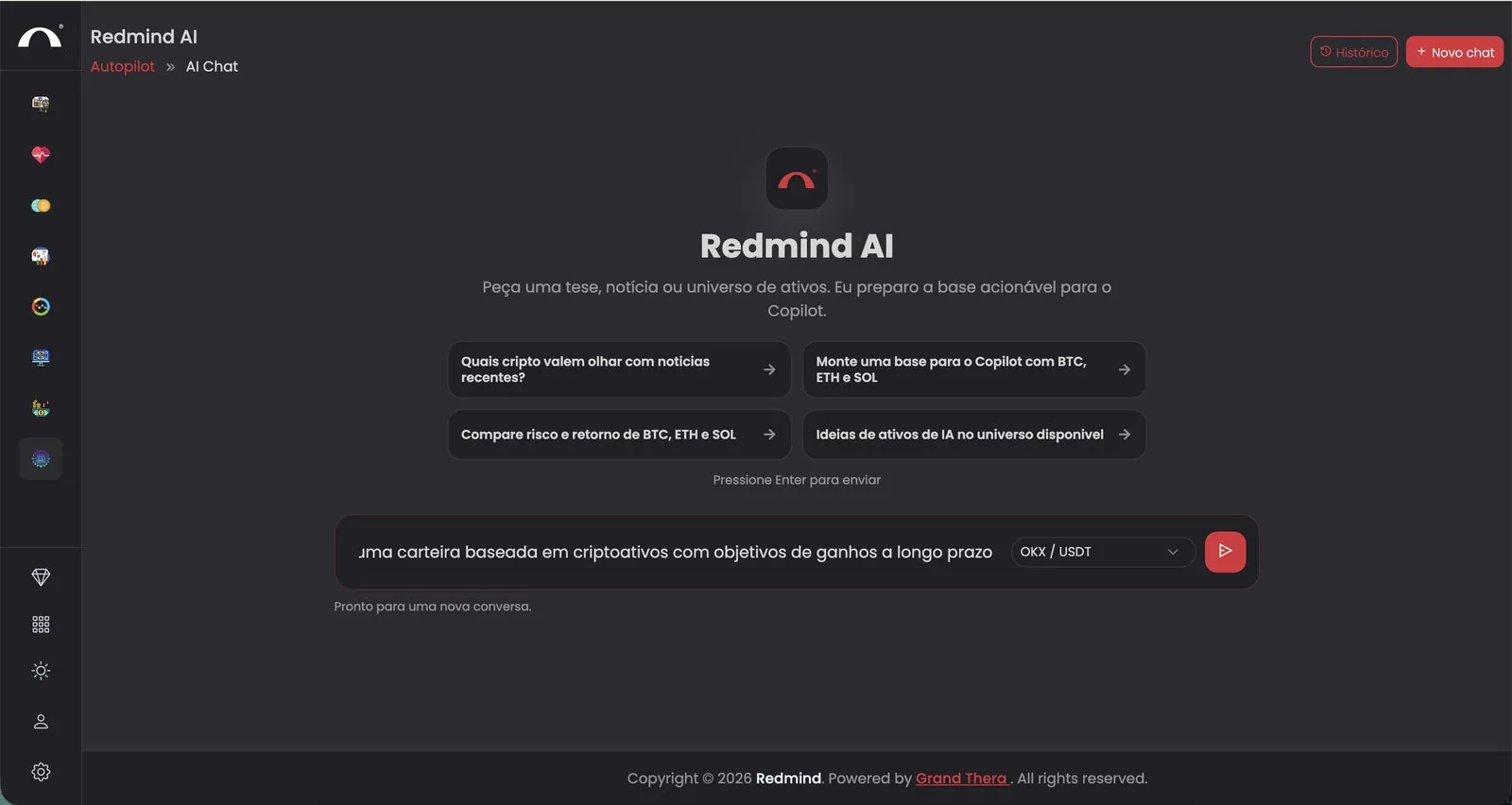
Type what you want in the field. For example: "monte uma carteira baseada em criptoativos com objetivos de ganhos a longo prazo" (build a crypto asset portfolio aimed at long-term gains).
You can be general ("carteira defensiva com foco em cripto", a defensive crypto-focused portfolio) or specific ("30% BTC, 20% ETH, 20% AAPLX, 15% NVDAX, 15% PAXG"). The AI understands both.
Press Enter or click the red send button.

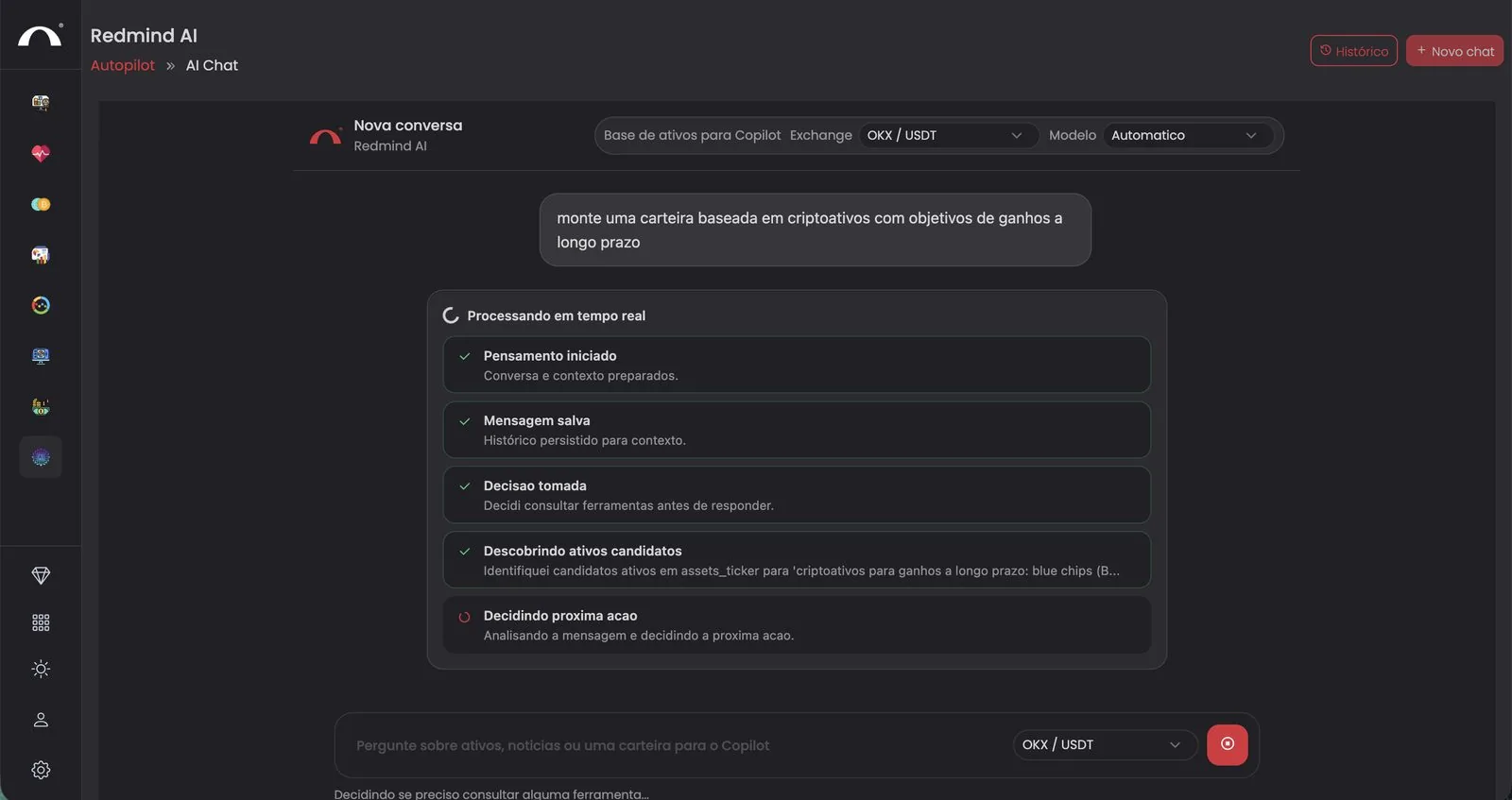
RedMind AI shows what it's doing in real time:
✓ Pensamento iniciado (Thinking started) · ✓ Mensagem salva (Message saved) · ✓ Decisão tomada (Decision made) · ✓ Descobrindo ativos candidatos (Discovering candidate assets) · Decidindo próxima ação (Deciding next action).
This takes a few seconds. You don't need to do anything; just wait.

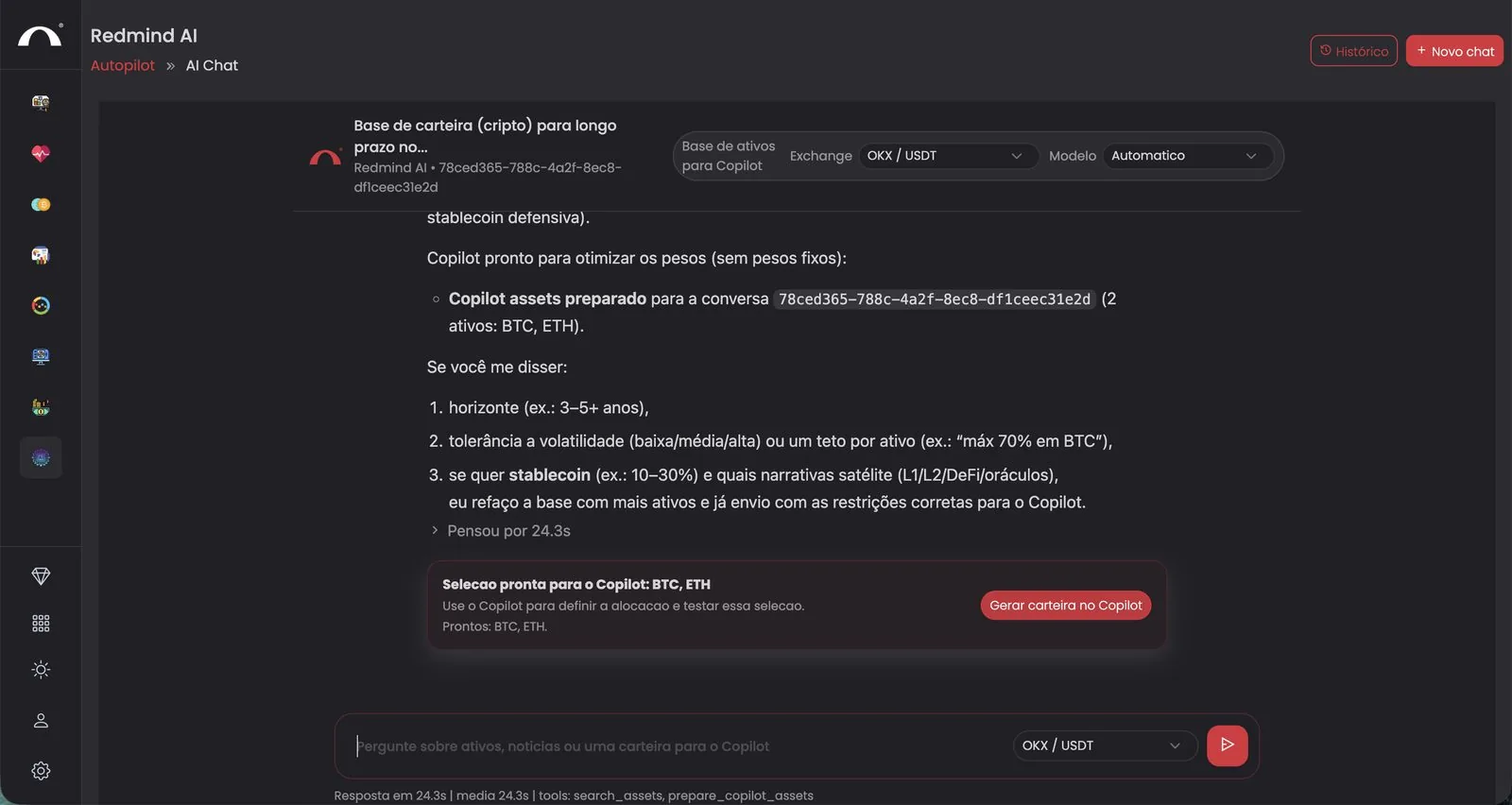
The AI presents the suggested selection (for example, BTC + ETH for the long term) and may ask for more details, such as your time horizon, volatility tolerance, and stablecoin use.
When you're happy with the proposed starting point, click the red Gerar carteira no Copilot (Generate portfolio in Copilot) button inside the green selection card.

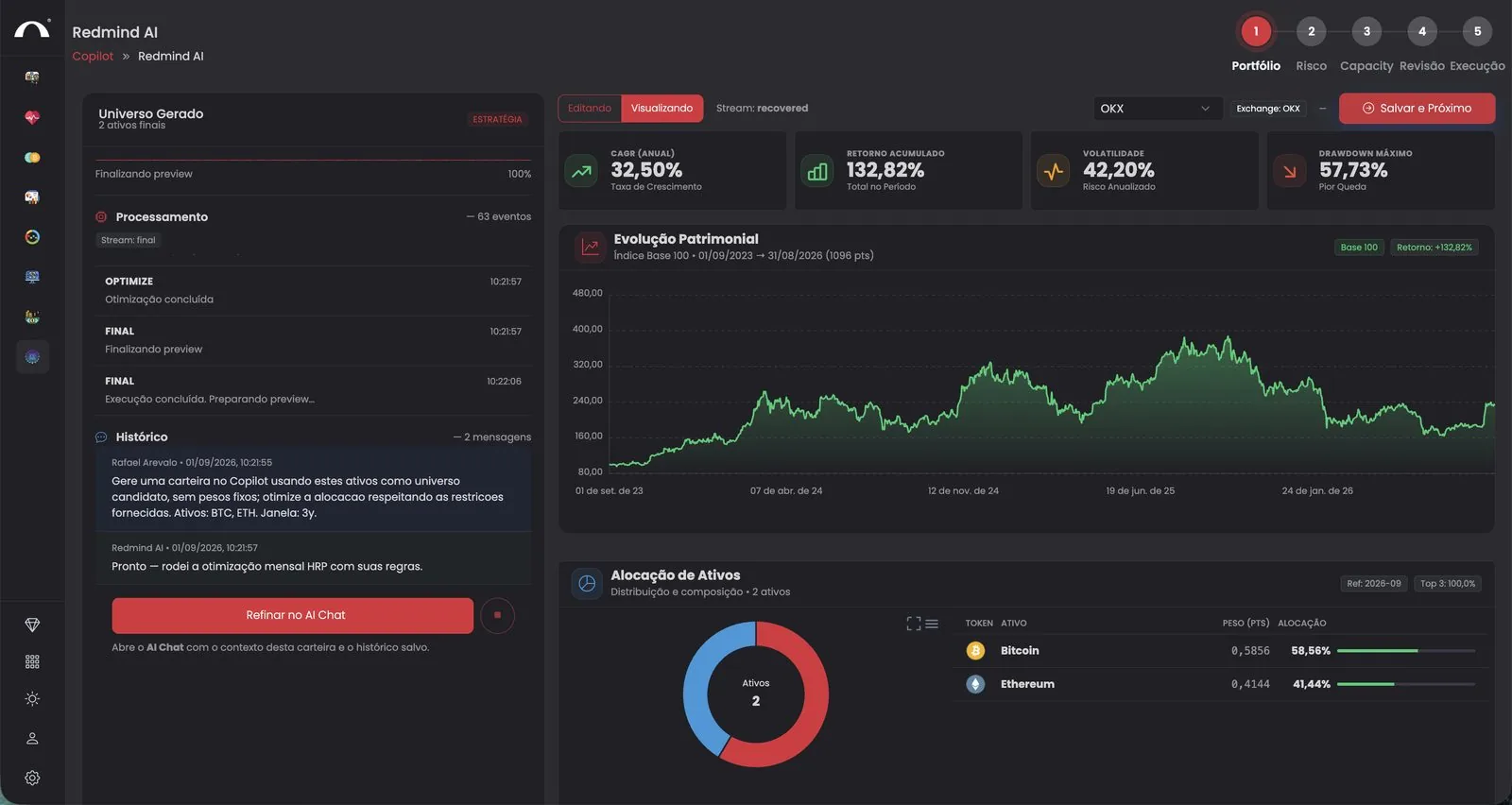
You enter the 5-phase wizard (Portfólio → Risco → Capacity → Revisão → Execução, meaning Portfolio → Risk → Capacity → Review → Execution). Phase 1 shows the portfolio optimized with HRP:
Backtest metrics: annual CAGR, Cumulative Return, Volatility, Maximum Drawdown.
Chart: equity growth, indexed to 100.
Allocation: the weight of each asset (for example, BTC 58.56% · ETH 41.44%).
To make changes, click Refinar no AI Chat (Refine in AI Chat). If it looks good, click Salvar e Próximo (Save and Next).

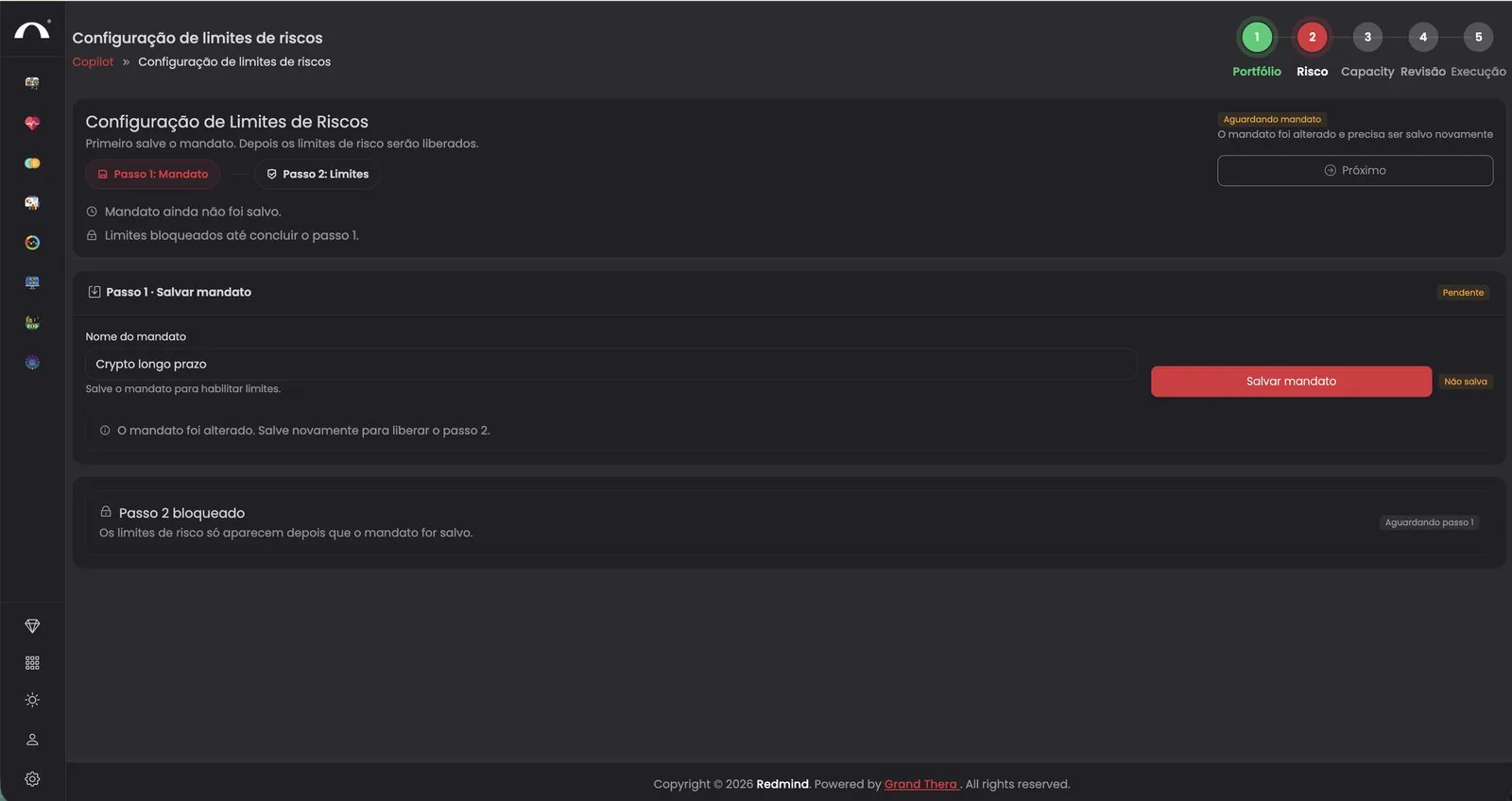
Phase 2 (Risco, Risk) has two steps. Start with Step 1: name the mandate in the Nome do mandato (Mandate name) field, for example Crypto longo prazo.
Click Salvar mandato (Save mandate). Step 2 (Limits) unlocks only after you save the mandate.

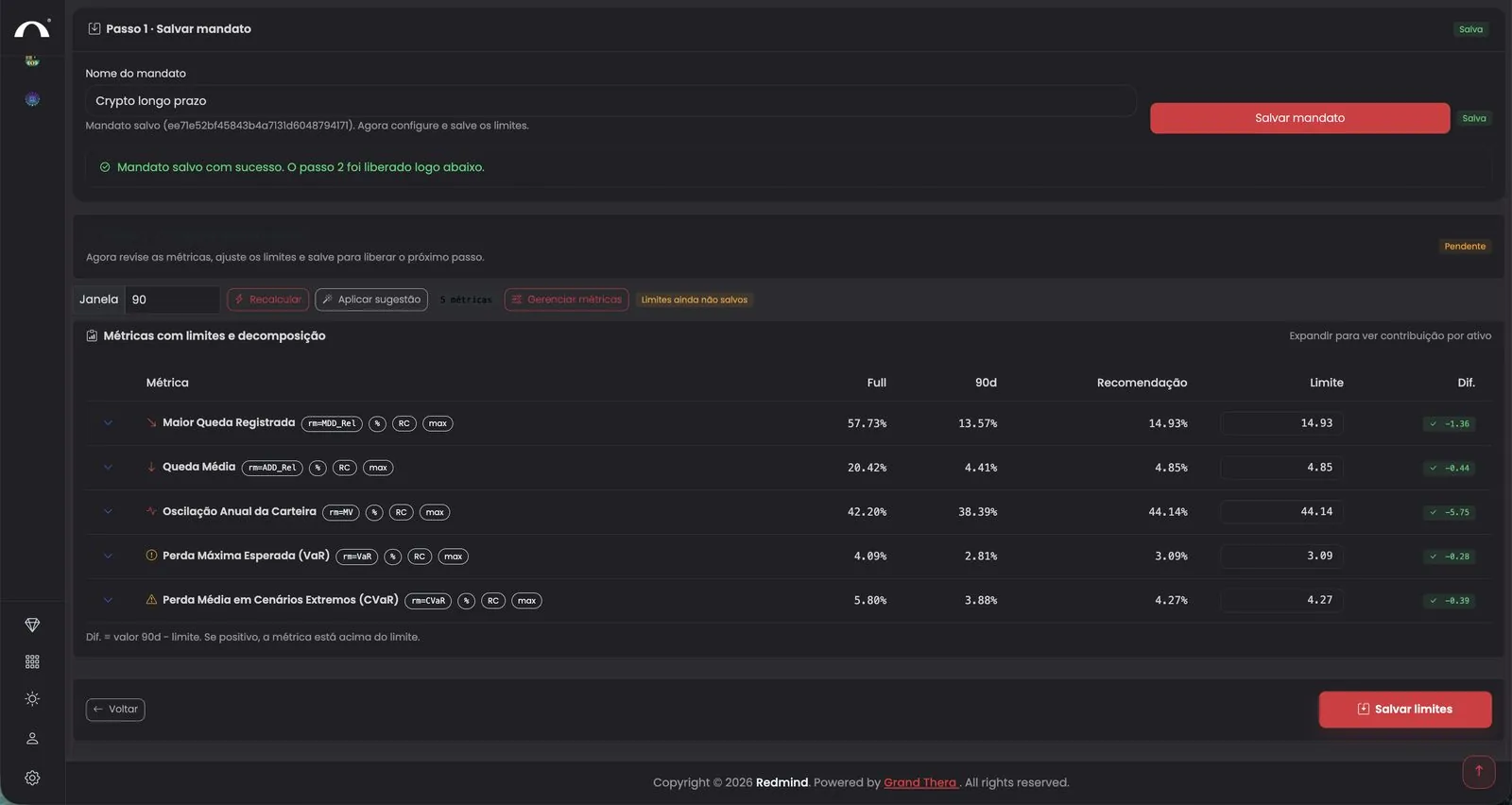
Once the mandate is saved, the metrics with limits table appears: Maior Queda Registrada (Largest Recorded Drop), Queda Média (Average Drop), Oscilação Anual da Carteira (Annual Portfolio Fluctuation), Perda Máxima Esperada (VaR) (Maximum Expected Loss), Perda Média em Cenários Extremos (CVaR) (Average Loss in Extreme Scenarios).
Each row shows the Full value, the 90d value, the Recomendação (Recommendation), and the Limite (Limit), which you can edit. Adjust the limits if you want, or accept the recommended values.
Click Salvar limites (Save limits) at the bottom.

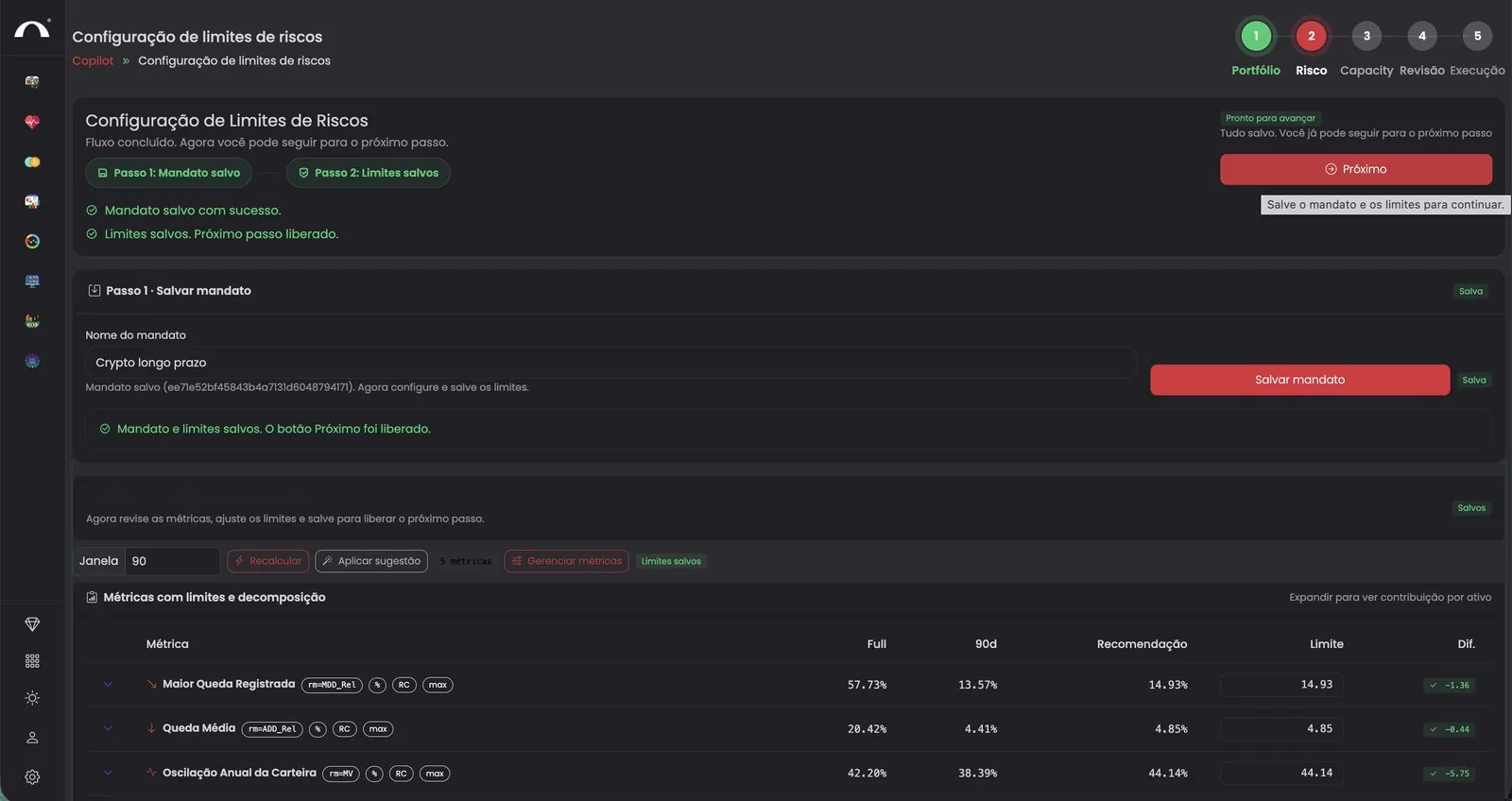
With the mandate and limits saved, the header shows Pronto para avançar (Ready to proceed). Click the red Próximo (Next) button.

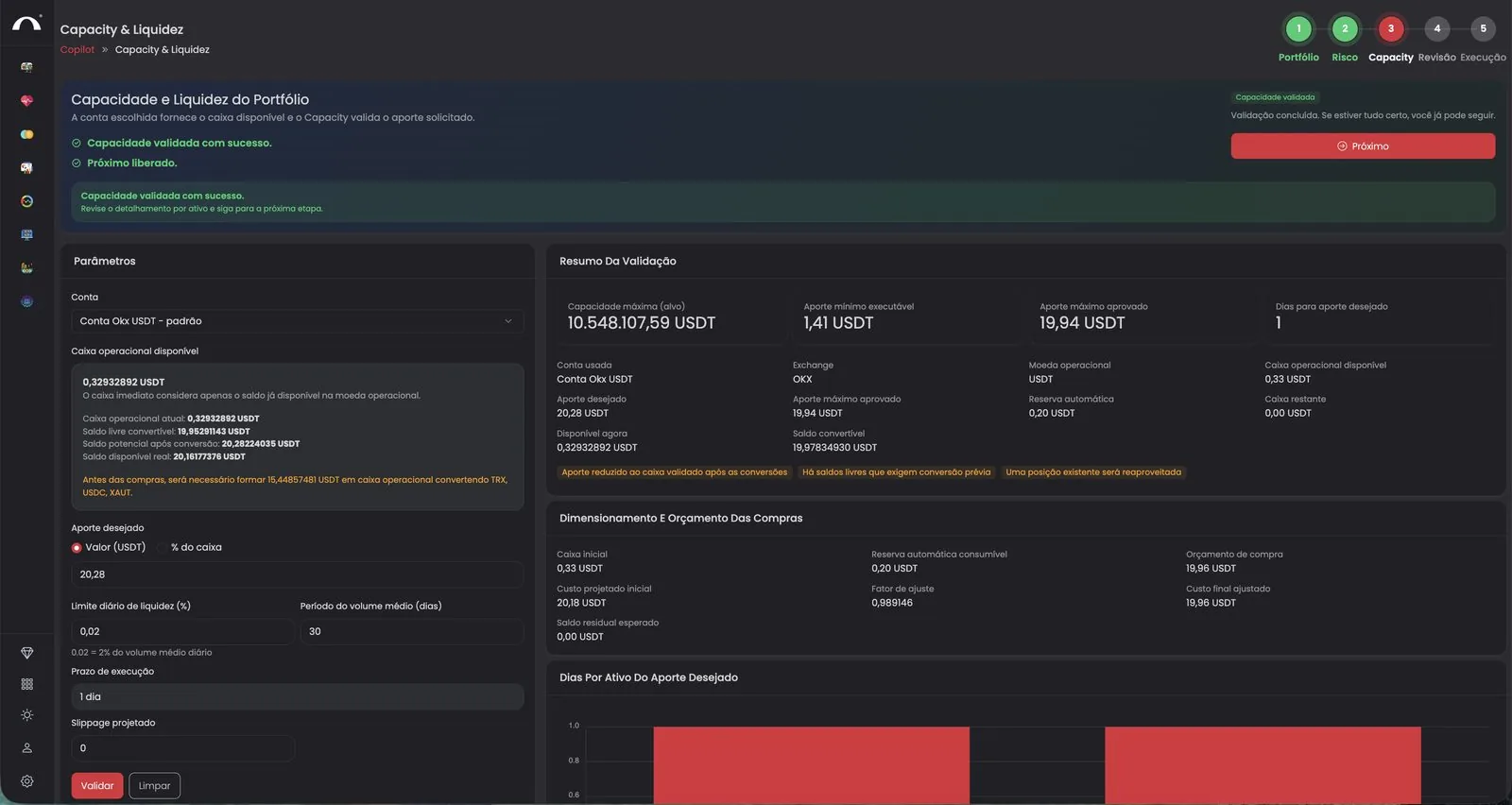
Phase 3 (Capacity & Liquidez, Capacity & Liquidity) calculates how much you can invest without exceeding the market's liquidity.
Set the parameters on the left: Conta (Account), Aporte desejado (Desired contribution, in USDT or as a % of cash), Limite diário de liquidez (Daily liquidity limit), Prazo de execução (Execution timeframe), and Slippage projetado (Projected slippage).
Click Validar (Validate). The right panel shows Capacidade validada com sucesso (Capacity validated successfully) and unlocks the Próximo (Next) button.

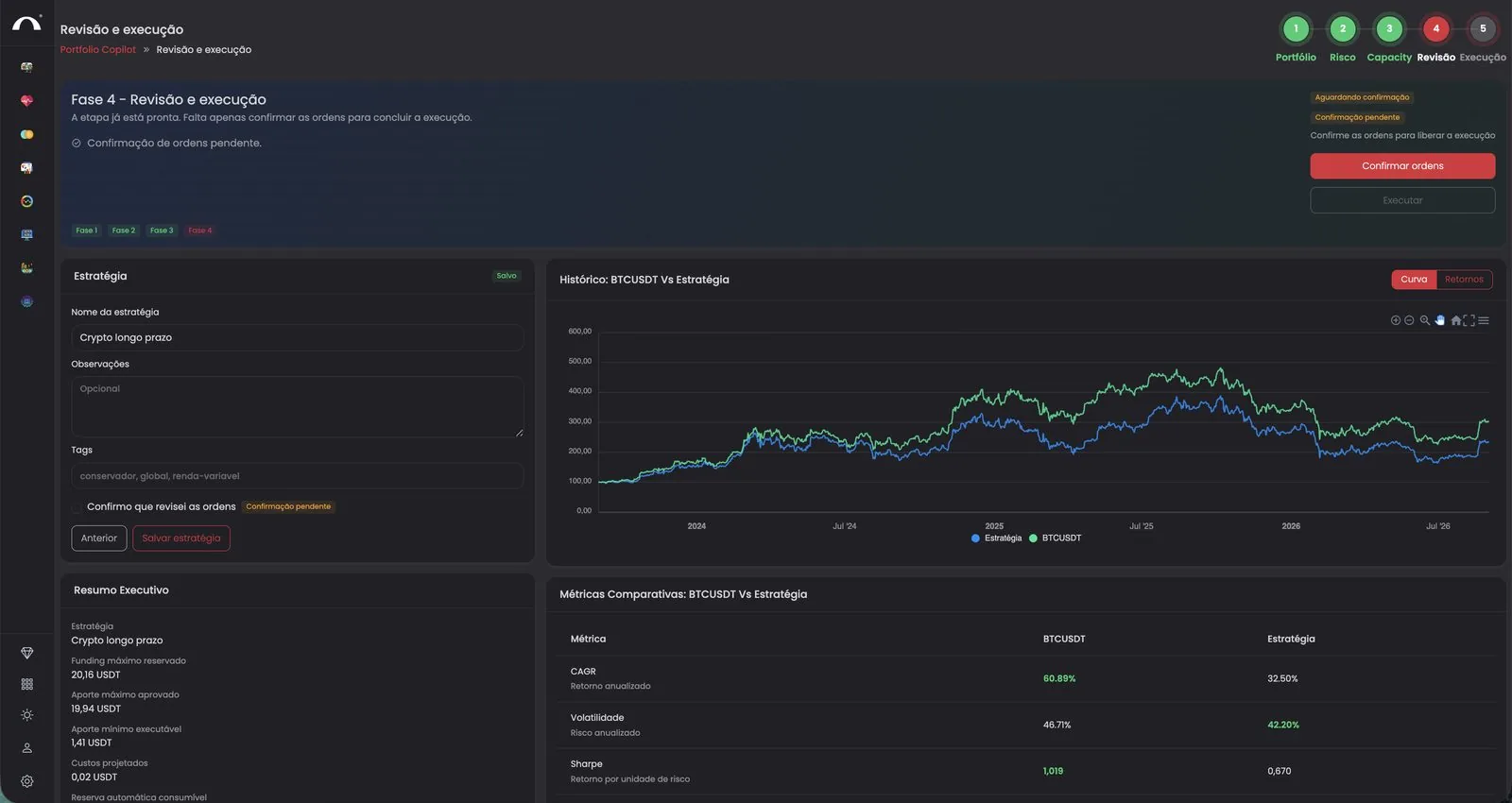
Phase 4 (Revisão, Review) shows the final summary: the strategy name, a chart that compares your strategy with BTCUSDT, and comparison metrics (CAGR, Volatility, Sharpe, etc.).
Optionally, add Observações (Notes) and Tags to organize your strategies.
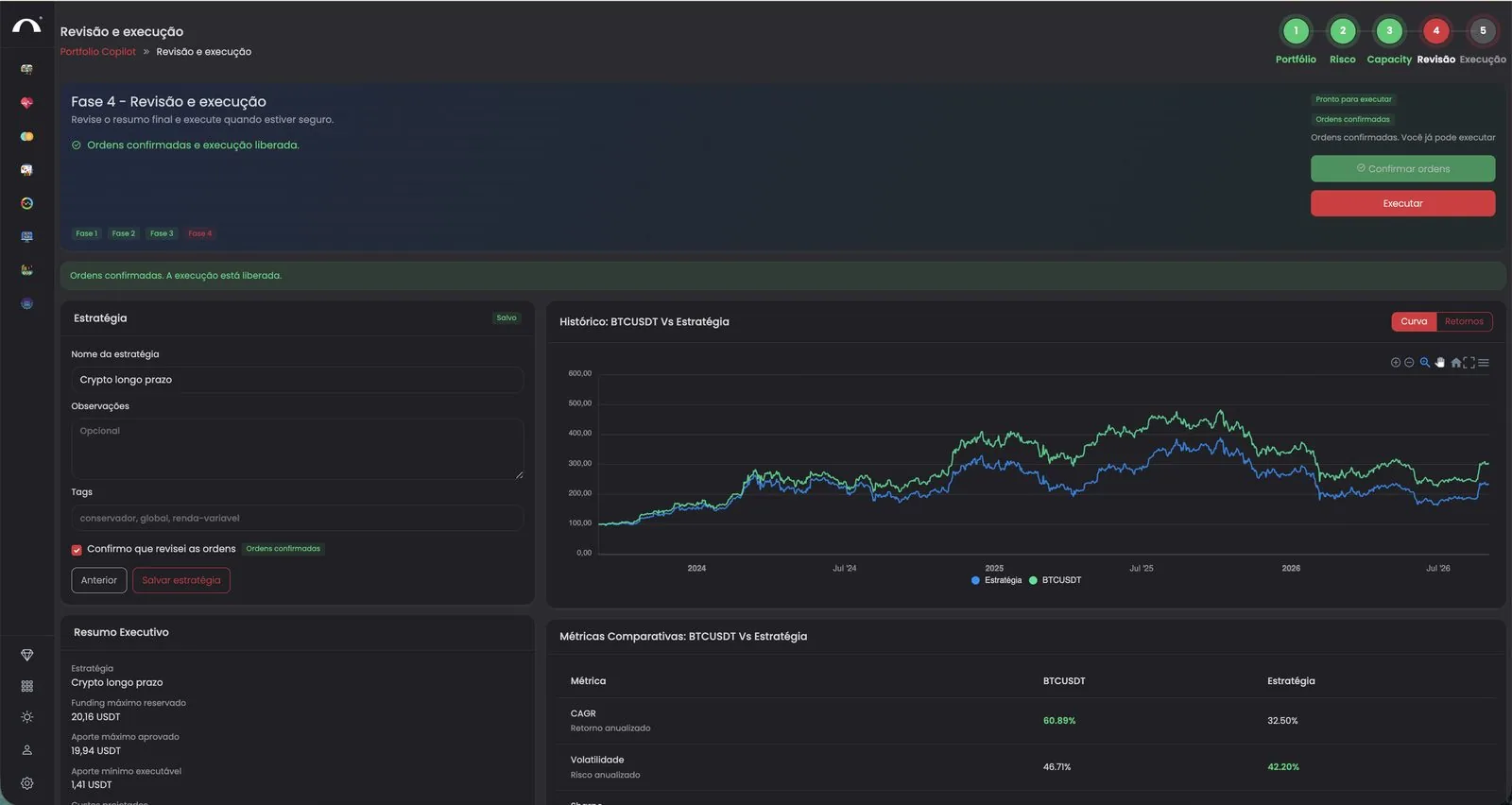
Select the Confirmo que revisei as ordens (I confirm that I reviewed the orders) checkbox. This unlocks the execution button in the next step.

With the orders confirmed, the header shows Pronto para executar (Ready to execute). Click the red Executar (Execute) button in the top-right corner.

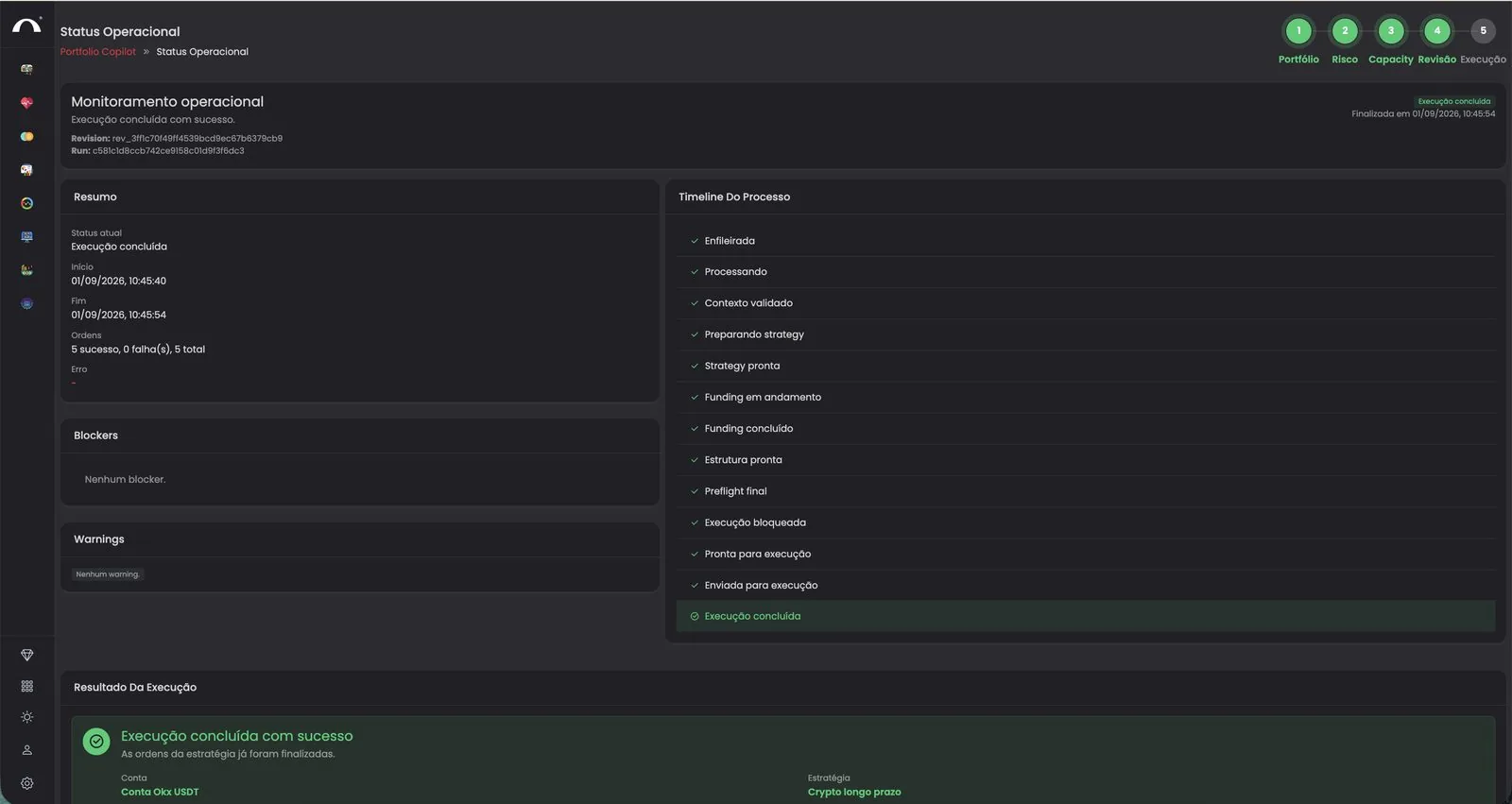
Phase 5 (Status Operacional, Operational Status) shows real-time monitoring. You see:
Resumo (Summary): current status, start, end, orders (successful vs. failed), errors.
Timeline do Processo (Process Timeline): each stage is marked in green (Enfileirada → Processando → Contexto validado → Preparando strategy → Strategy pronta → Funding em andamento → Funding concluído → Estrutura pronta → Preflight final → Execução bloqueada → Pronta para execução → Enviada para execução → Execução concluída), meaning Queued → Processing → Context validated → Preparing strategy → Strategy ready → Funding in progress → Funding complete → Structure ready → Final preflight → Execution blocked → Ready for execution → Sent for execution → Execution complete.
Blockers and Warnings: anything that needs your attention appears here.
When Execução concluída com sucesso (Execution completed successfully) appears, all of the strategy's orders have been completed.

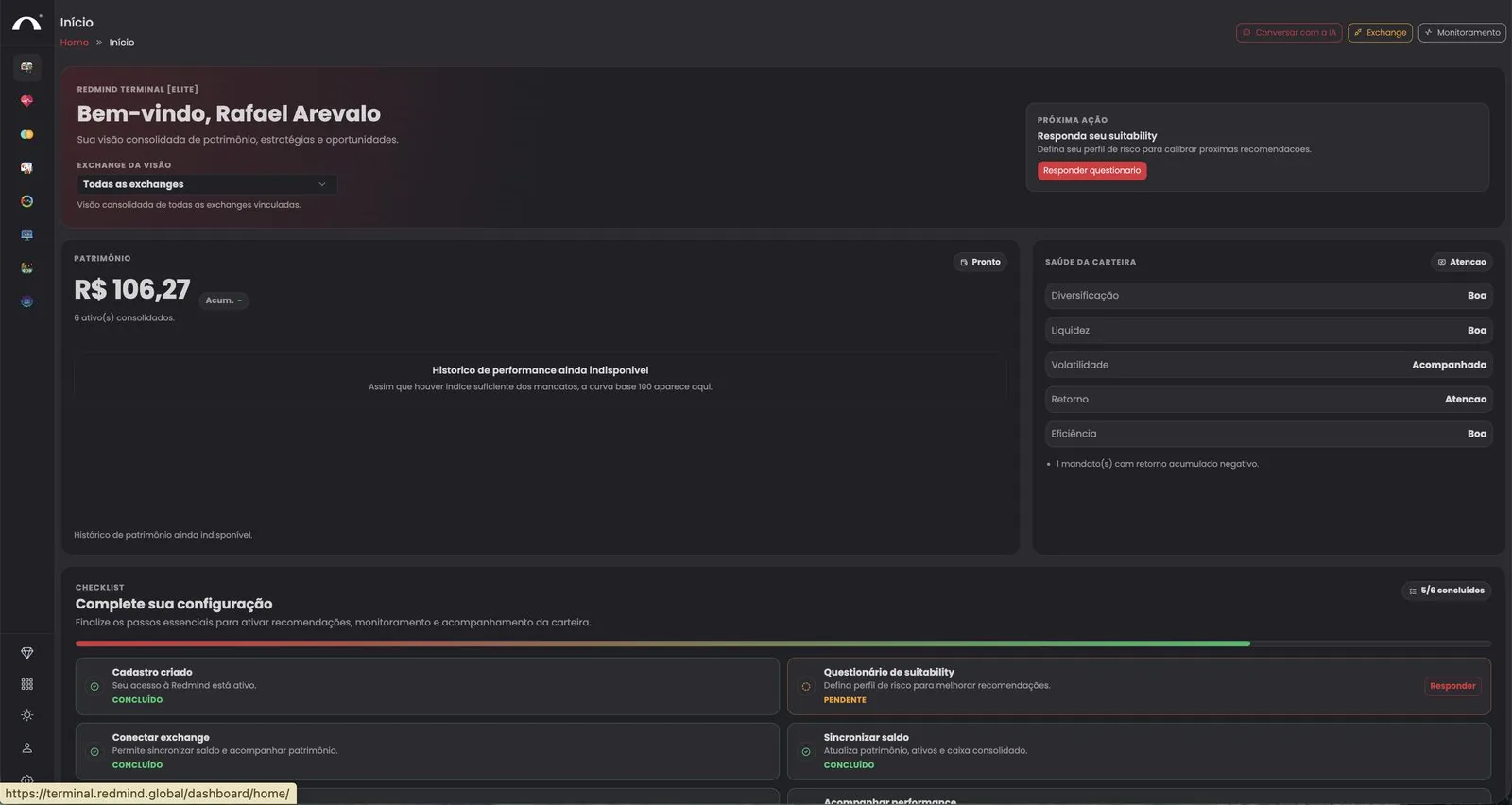
Click Home in the sidebar. You see the consolidated dashboard:
Patrimônio (Net worth): the consolidated total (all assets across your linked exchanges).
Saúde da carteira (Portfolio health): Diversificação (Diversification), Liquidez (Liquidity), Volatilidade (Volatility), Retorno (Return), Eficiência (Efficiency).
Checklist de configuração (Setup checklist): shows what's still missing (for example, a pending suitability questionnaire).
If the suitability questionnaire is pending, click Responder (Answer) to better calibrate future recommendations.

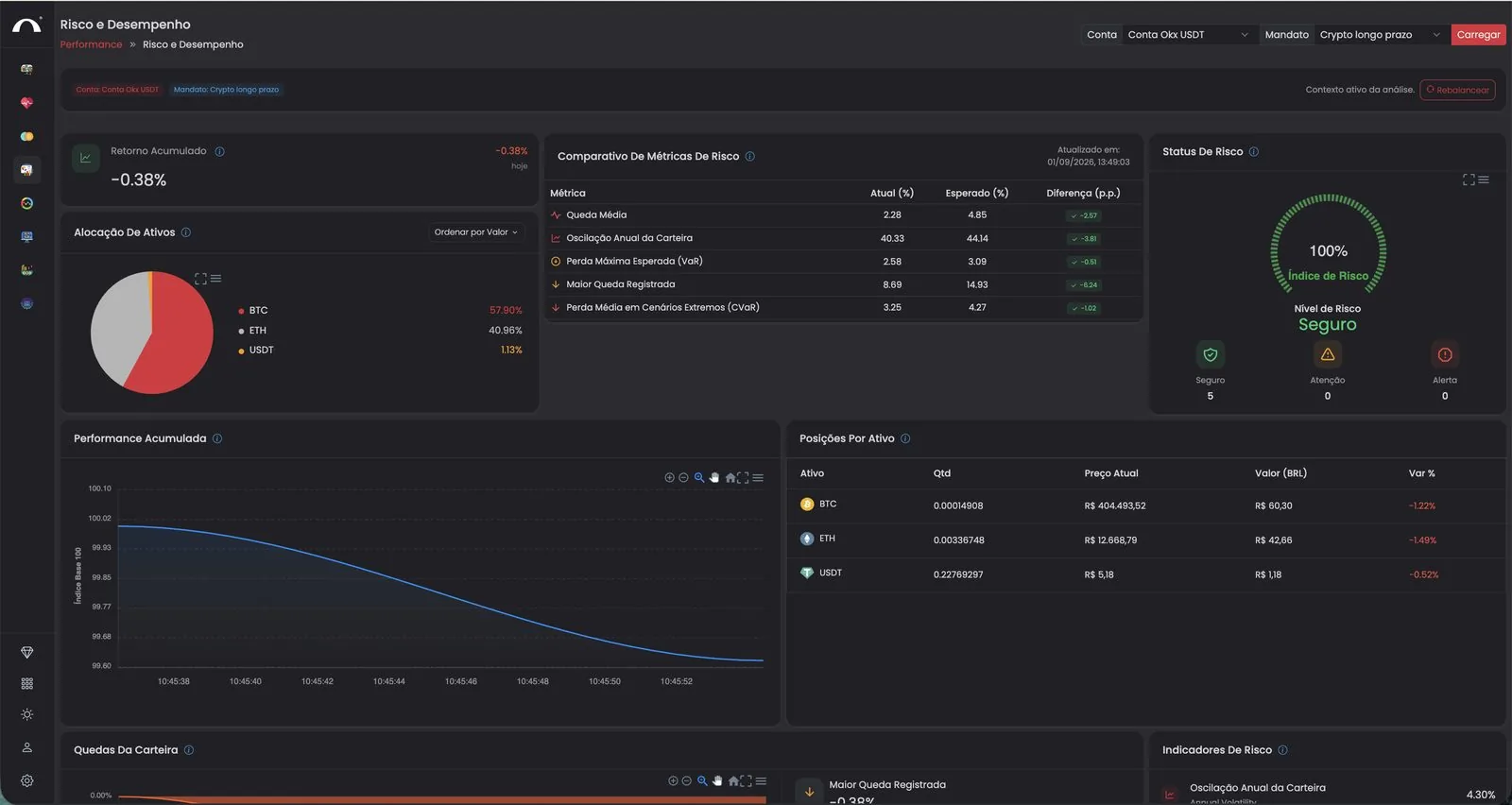
To track detailed performance, go to Performance → Risco e Desempenho (Risk and Performance). There you'll find:
Retorno Acumulado (Cumulative Return) · Alocação de Ativos (Asset Allocation): a pie chart with the % of each asset · Comparativo de Métricas de Risco (Risk Metrics Comparison): Atual vs Esperado vs Diferença, meaning Current vs. Expected vs. Difference · Status de Risco (Risk Status): a 0-100% index with a Seguro/Atenção/Alerta level, meaning Safe/Caution/Alert · Performance Acumulada (Cumulative Performance): a chart · Posições Por Ativo (Positions by Asset): quantity, price, value in BRL, change.
If a limit is breached, click Rebalancear (Rebalance) in the top-right corner to have the Autopilot adjust the portfolio automatically.