R
RedMind Tutorials
Exchange integration

Connect an exchange (OKX)

How to create an API key on OKX and connect it to RedMind. The process is similar for the other supported exchanges.

1 of 15 steps • 7% complete
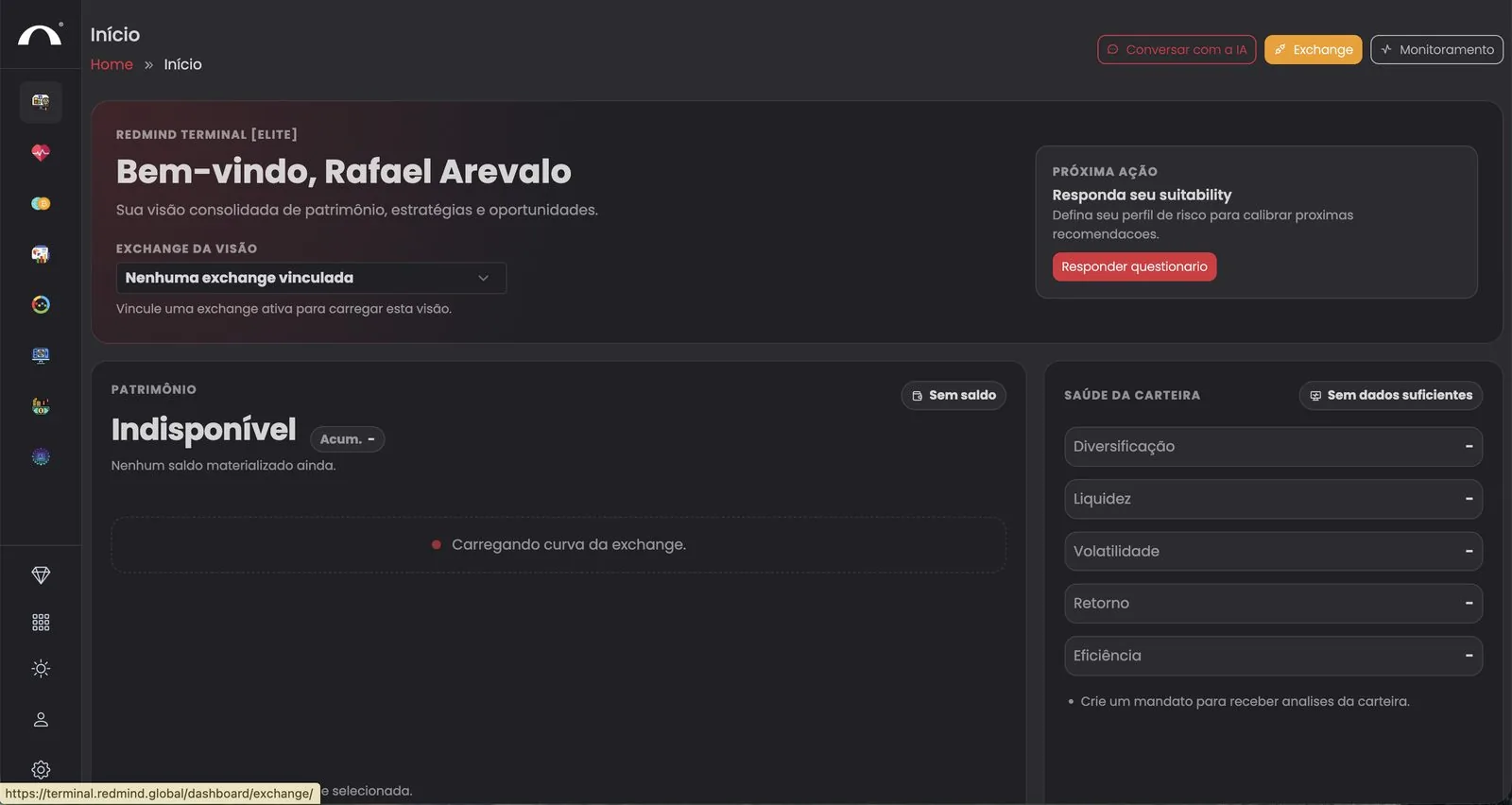
In RedMind, click Exchange
Step 1 of 15

In RedMind, click Exchange

Log in to RedMind and go to Início (Home). In the top-right corner, click the orange Exchange button.

This is your starting point, but before you fill out the form here, you need to generate the API key on the OKX website. Let's get started.

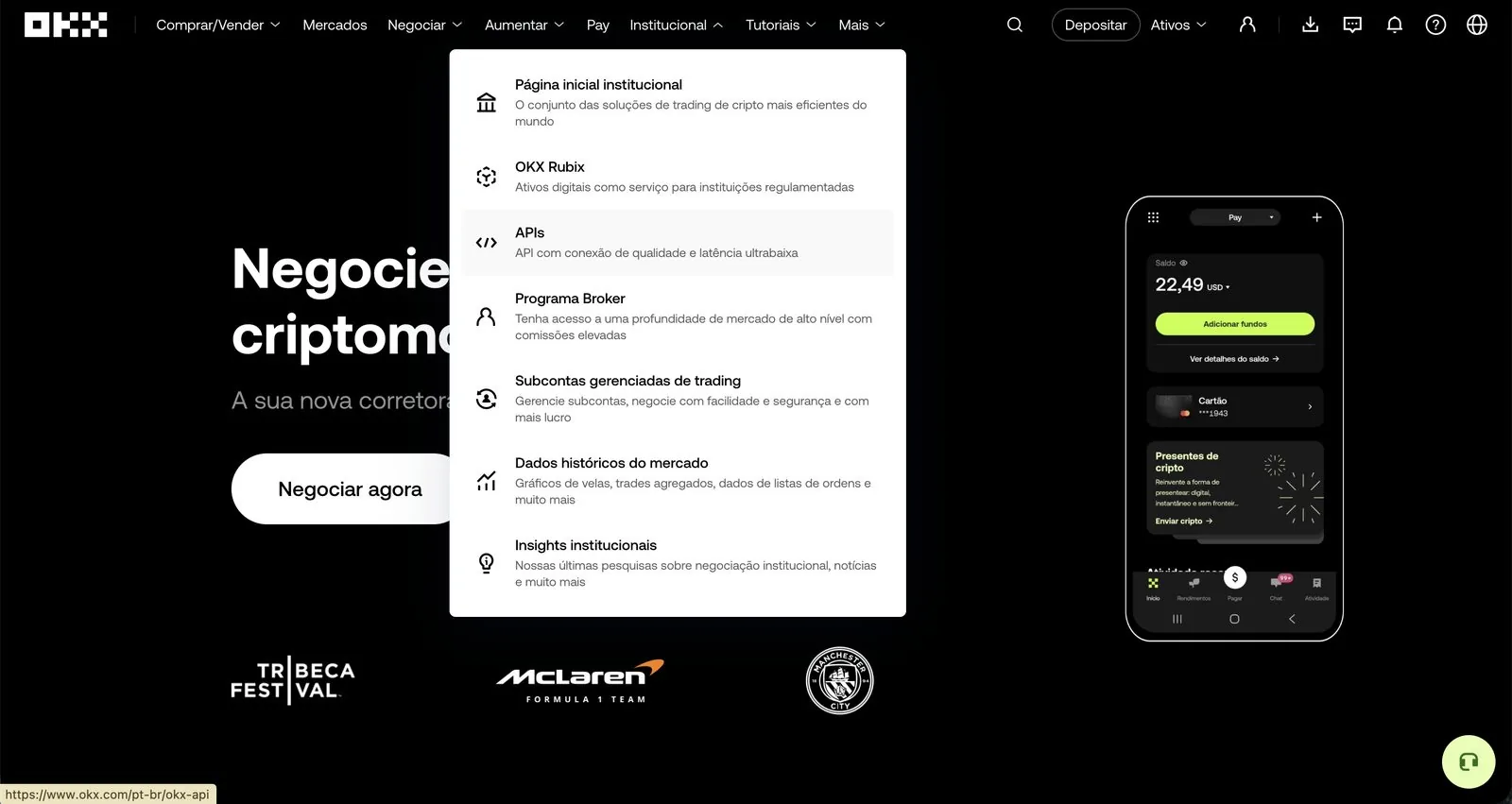
On the OKX website, go to Institucional → APIs (Institutional → APIs)
Step 2 of 15

On the OKX website, go to Institucional → APIs (Institutional → APIs)

Open okx.com and log in. In the top menu, hover over Institucional (Institutional) and click APIs.

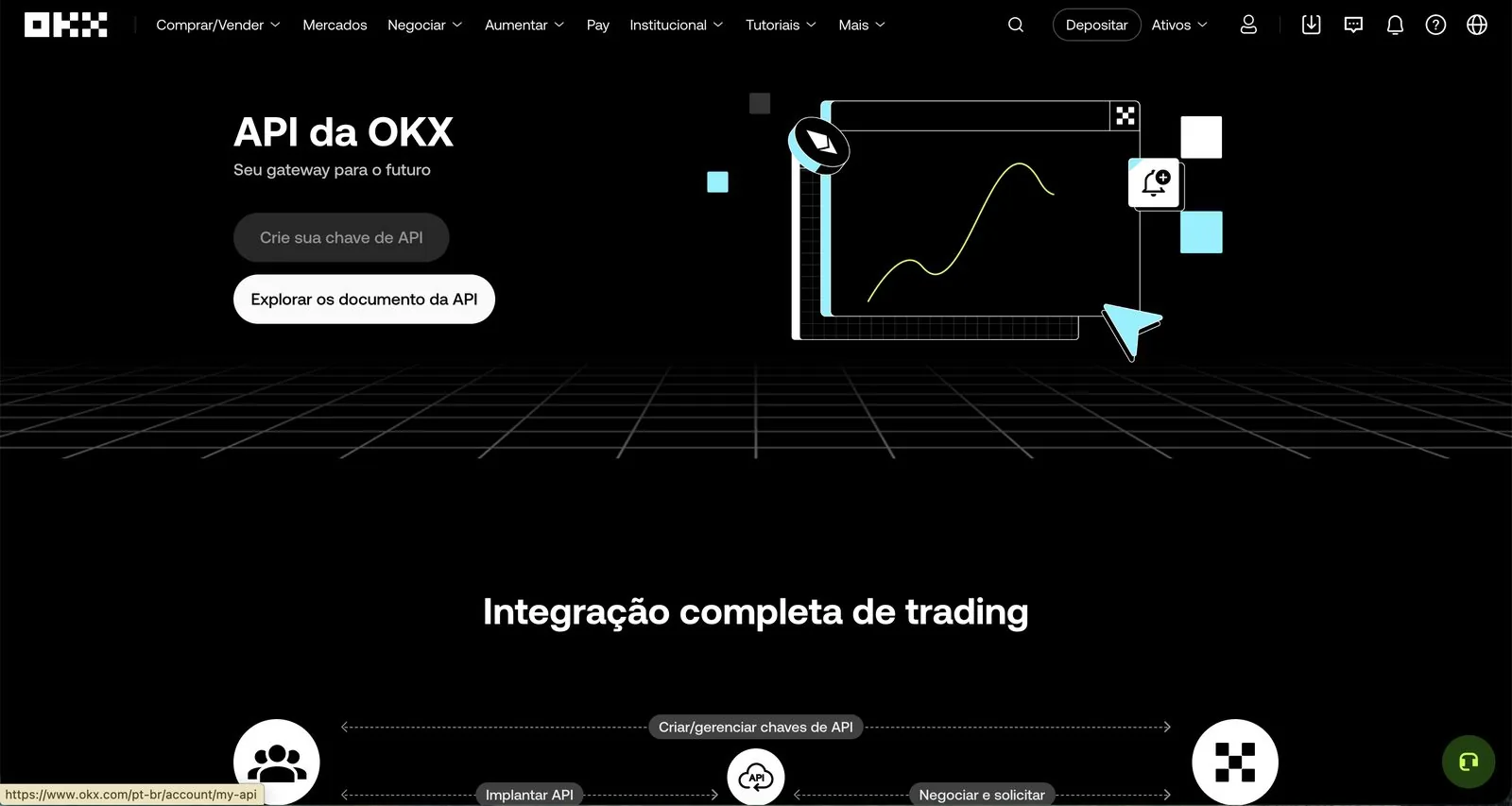
Click Crie sua chave de API (Create your API key)
Step 3 of 15

Click Crie sua chave de API (Create your API key)

You land on the API da OKX (OKX API) page. Click the Crie sua chave de API (Create your API key) button.

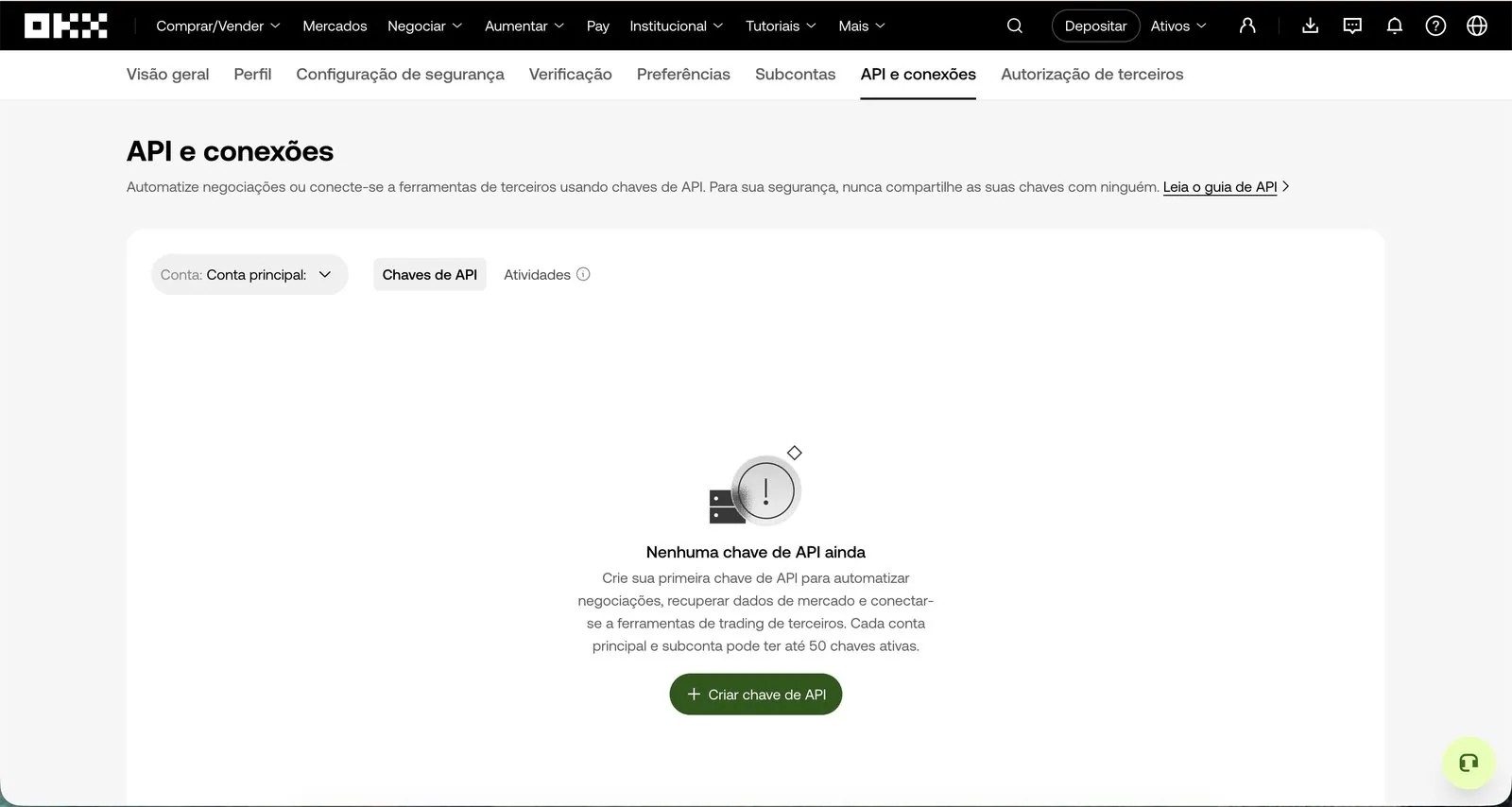
Click Criar chave de API (Create API key)
Step 4 of 15

Click Criar chave de API (Create API key)

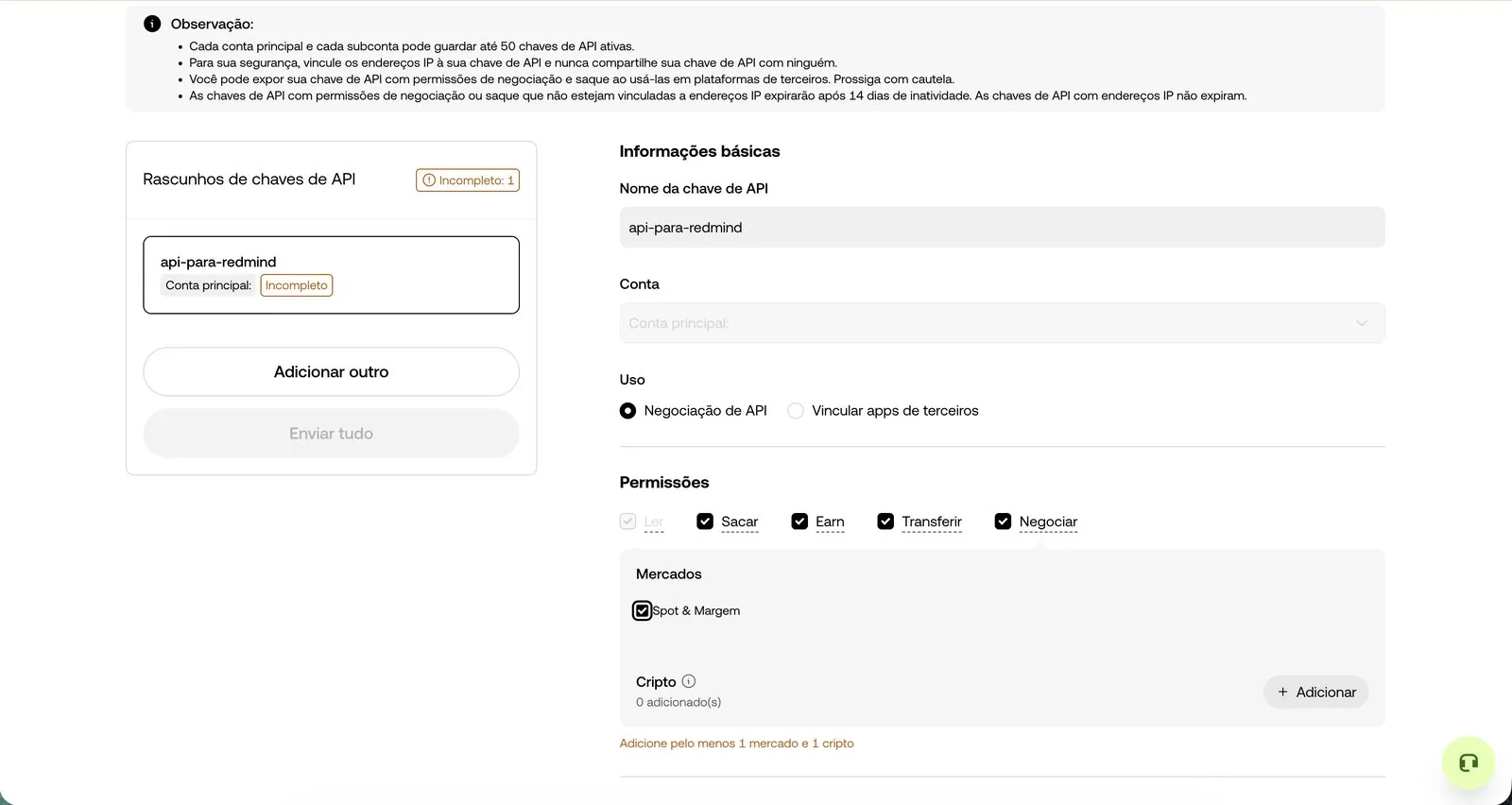
If you don't have any keys yet, you see the message Nenhuma chave de API ainda (No API keys yet). Click the green + Criar chave de API (+ Create API key) button.

Limit
The main account and each subaccount can have up to 50 active keys.
Name the key and choose Negociação de API (API trading)
Step 5 of 15

Name the key and choose Negociação de API (API trading)

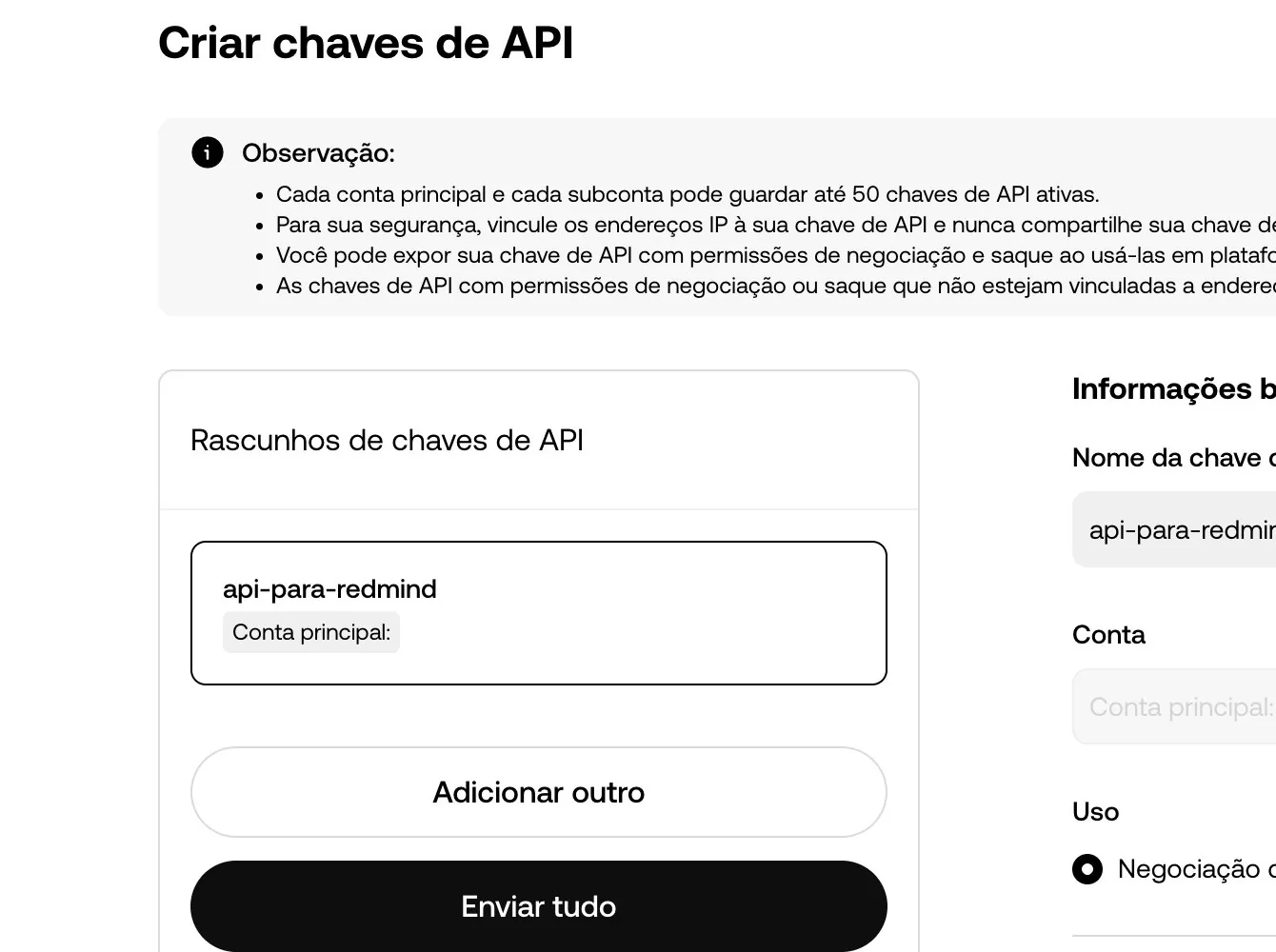
Enter an easy-to-remember name in Nome da chave de API (API key name). We suggest api-para-redmind.

Under Uso (Purpose), leave Negociação de API (API trading) selected. Don't use "Vincular apps de terceiros" (Link third-party apps).

Add all available cryptos
Step 6 of 15

Add all available cryptos

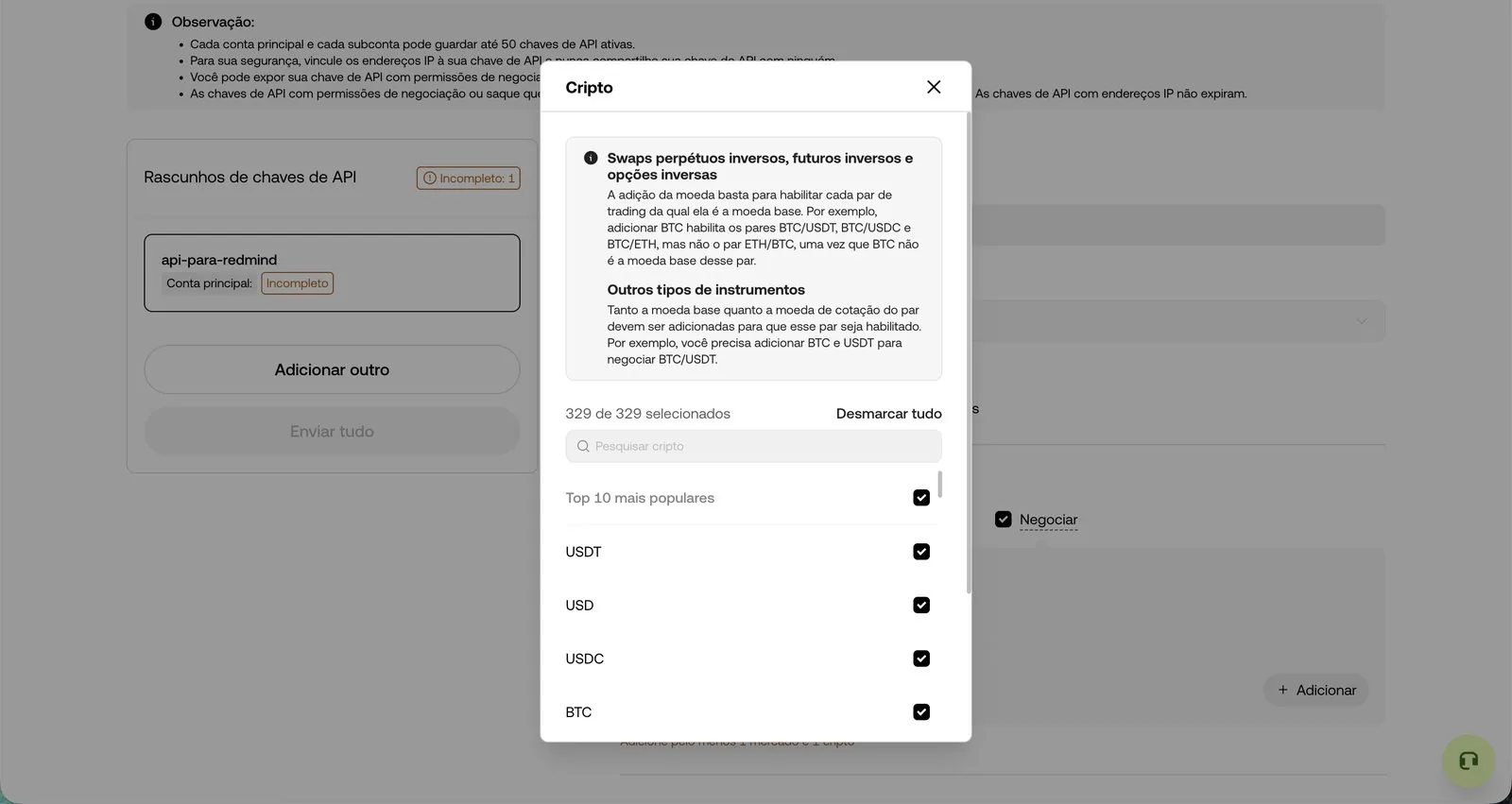
OKX requires you to select at least 1 market and 1 crypto. In the Cripto (Crypto) section, click + Adicionar (+ Add) to open the list.

In the dialog that opens, click Selecionar tudo (Select all) in the top-right corner. This unlocks all 329 cryptos available for trading on OKX.

This way, the RedMind Autopilot can trade any pair without you having to reconfigure the API later.

Confirm the selection
Step 7 of 15

Confirm the selection

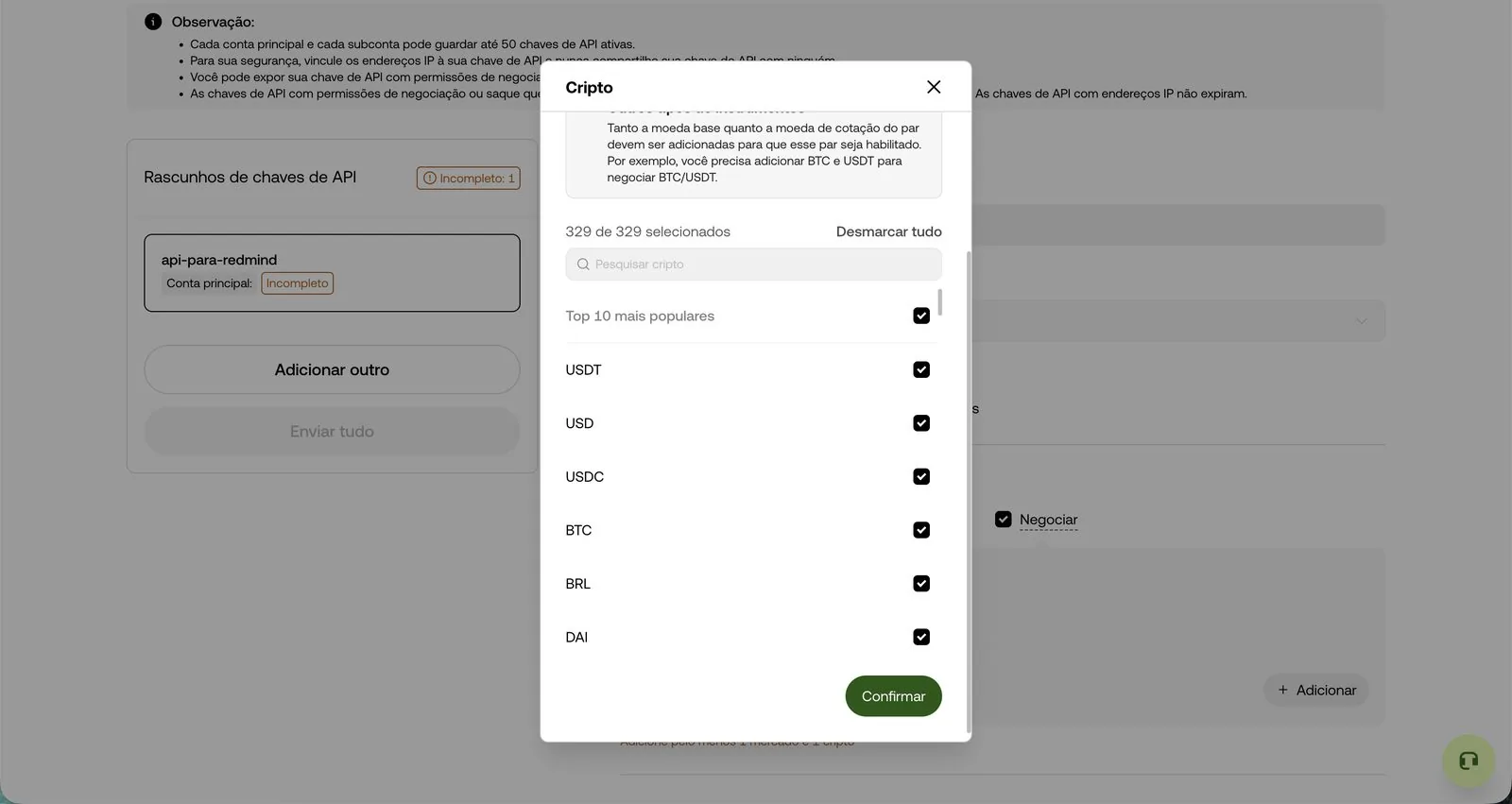
Scroll to the bottom of the dialog and click the green Confirmar (Confirm) button.

Set a secure passphrase
Step 8 of 15

Set a secure passphrase

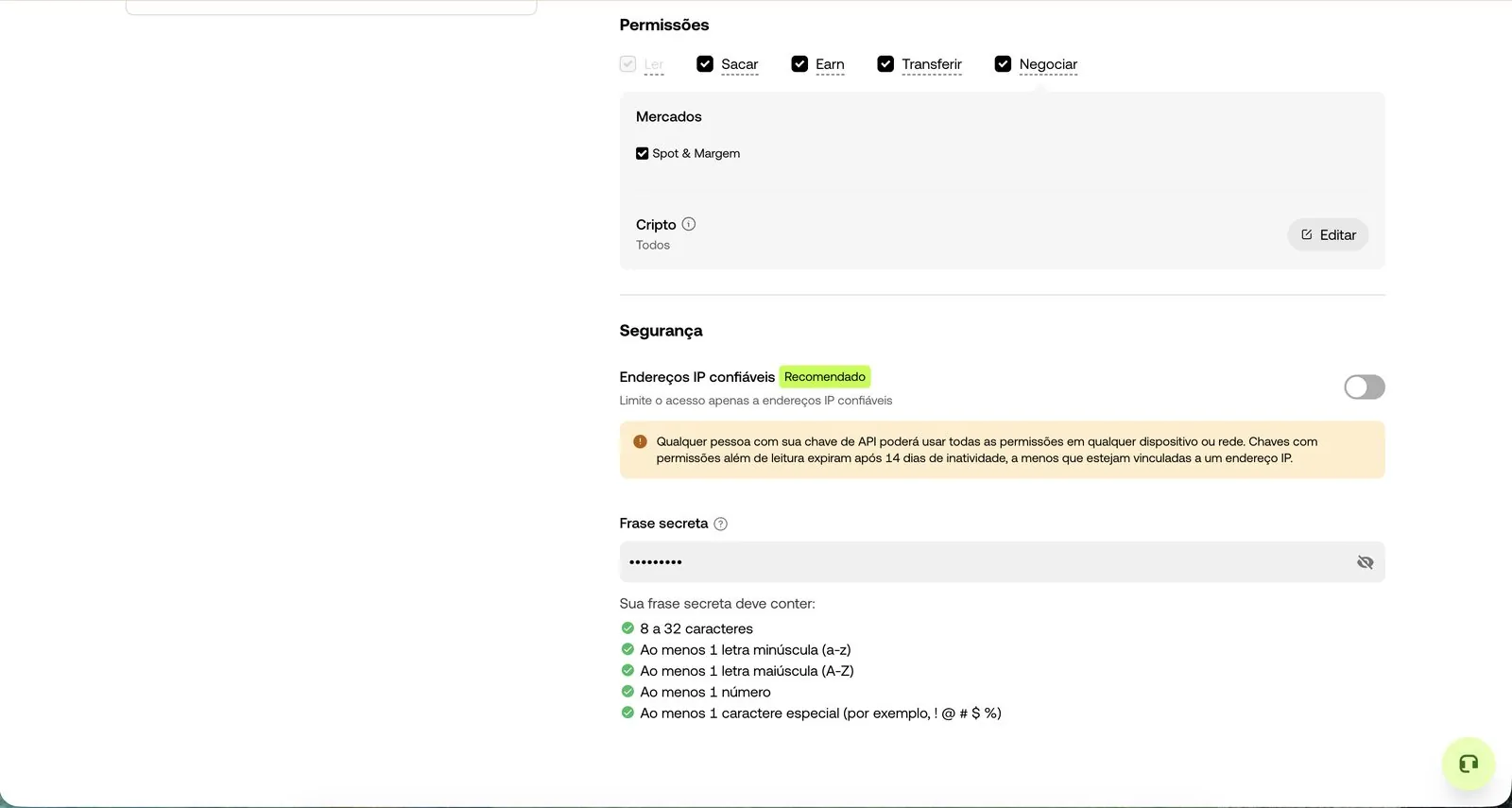
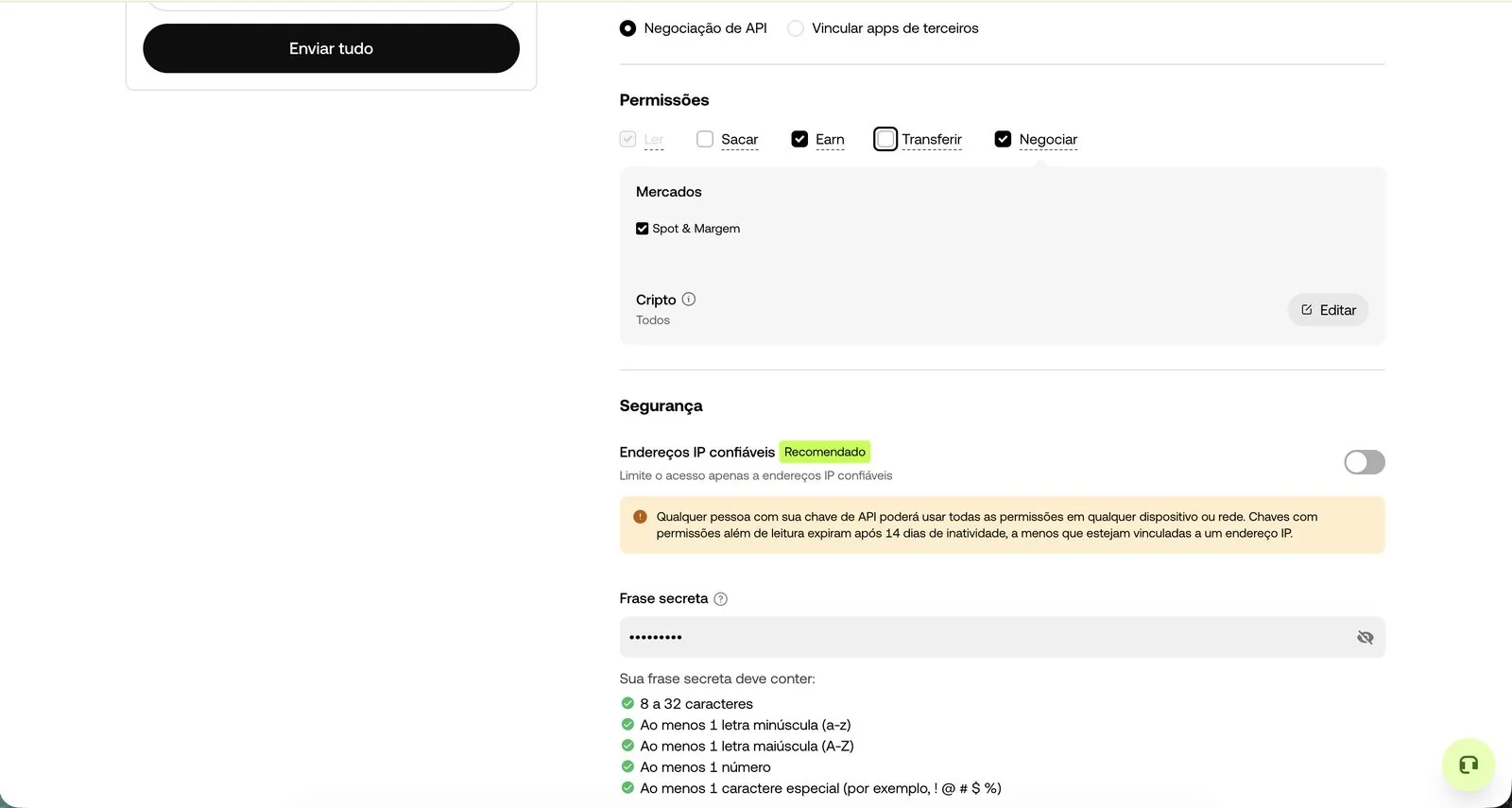
Scroll to the Segurança (Security) section. Fill in the Frase secreta (Passphrase) field. It must meet these requirements:

✓ 8 to 32 characters · ✓ Lowercase letter · ✓ Uppercase letter · ✓ Number · ✓ Special character (! @ # $ %).

Warning
Store this passphrase somewhere safe: you'll need it to connect to RedMind. It's different from your OKX account password.
UNCHECK the Sacar (Withdraw) permission
Step 9 of 15

UNCHECK the Sacar (Withdraw) permission

Go back to the Permissões (Permissions) section at the top. You'll see: Ler (Read), Sacar (Withdraw), Earn, Transferir (Transfer), and Negociar (Trade).

To trade with RedMind, keep Ler (Read), Earn, and Negociar (Trade) checked. UNCHECK Sacar (Withdraw) and Transferir (Transfer).

Golden rule: never grant Withdraw permission
RedMind NEVER needs permission to withdraw your funds. If any platform asks for this permission, be suspicious. Keeping Withdraw unchecked guarantees that no one can take your money out of the exchange.
Submit the key for creation
Step 10 of 15

Submit the key for creation

Once the name is filled in, the purpose is set to "Negociação de API" (API trading), the cryptos are added, the permissions are correct (no Withdraw), and the passphrase is saved, the draft shows as valid in the left panel.

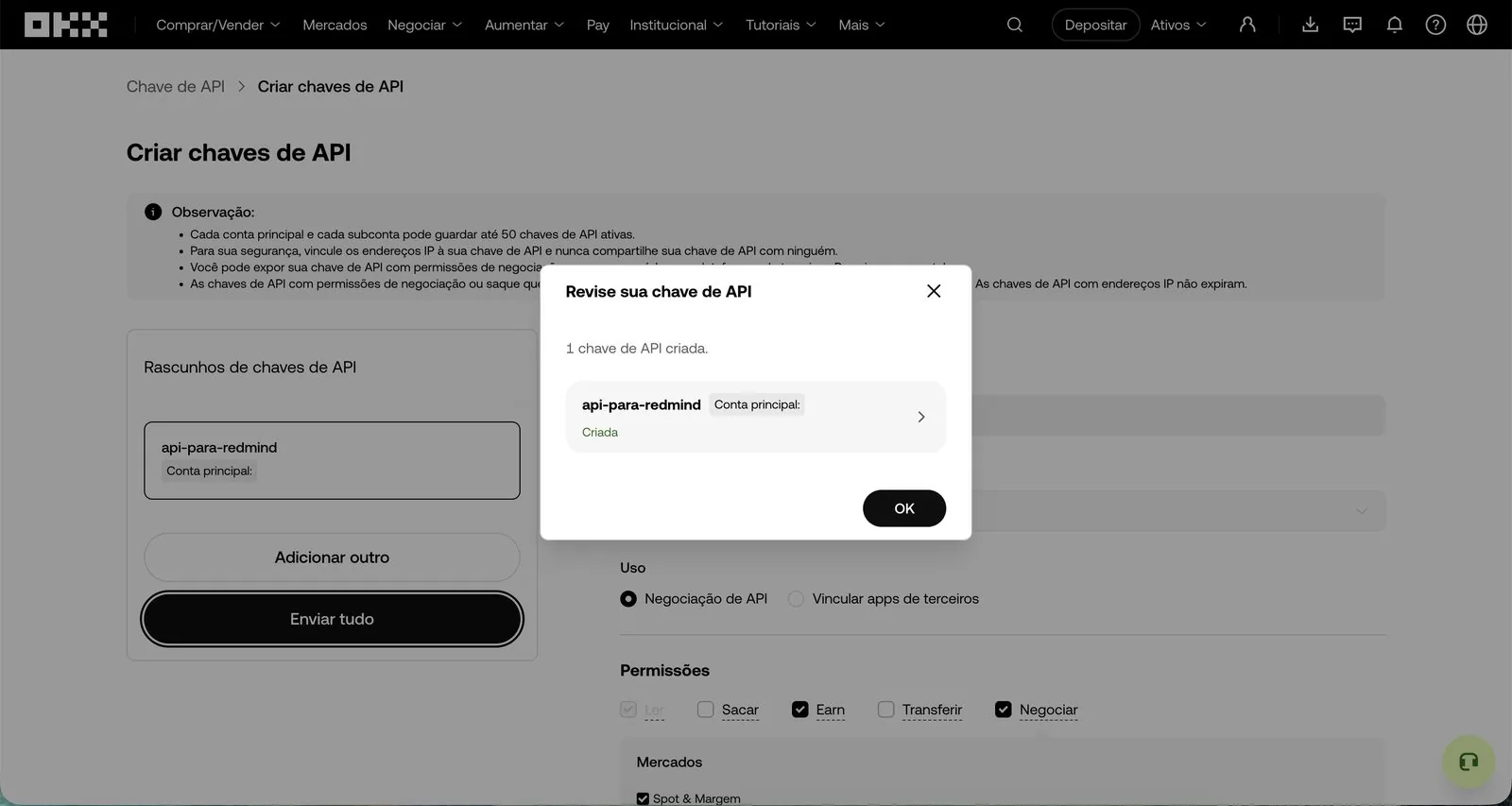
Click the black Enviar tudo (Submit all) button.

Confirm that the key was created
Step 11 of 15

Confirm that the key was created

OKX opens the Revise sua chave de API (Review your API key) dialog, which shows "1 chave de API criada" (1 API key created) with the green Criada (Created) status. Click OK.

Open the new key's details
Step 12 of 15

Open the new key's details

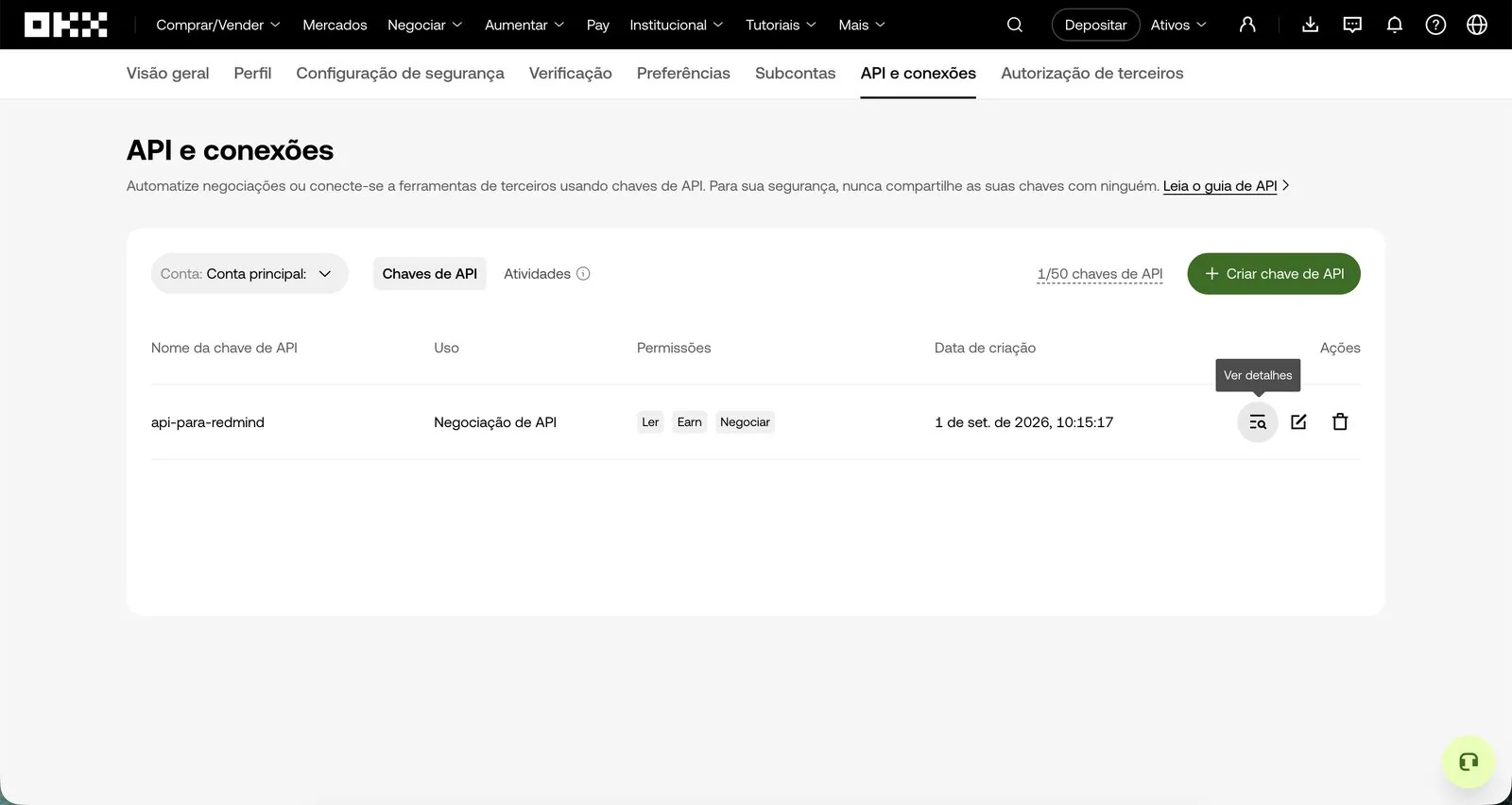
Your api-para-redmind key now appears in the API e conexões (API and connections) list with the permissions Ler / Earn / Negociar (Read / Earn / Trade).

In the Ações (Actions) column, click the magnifying glass icon (Ver detalhes, View details) to open the credentials.

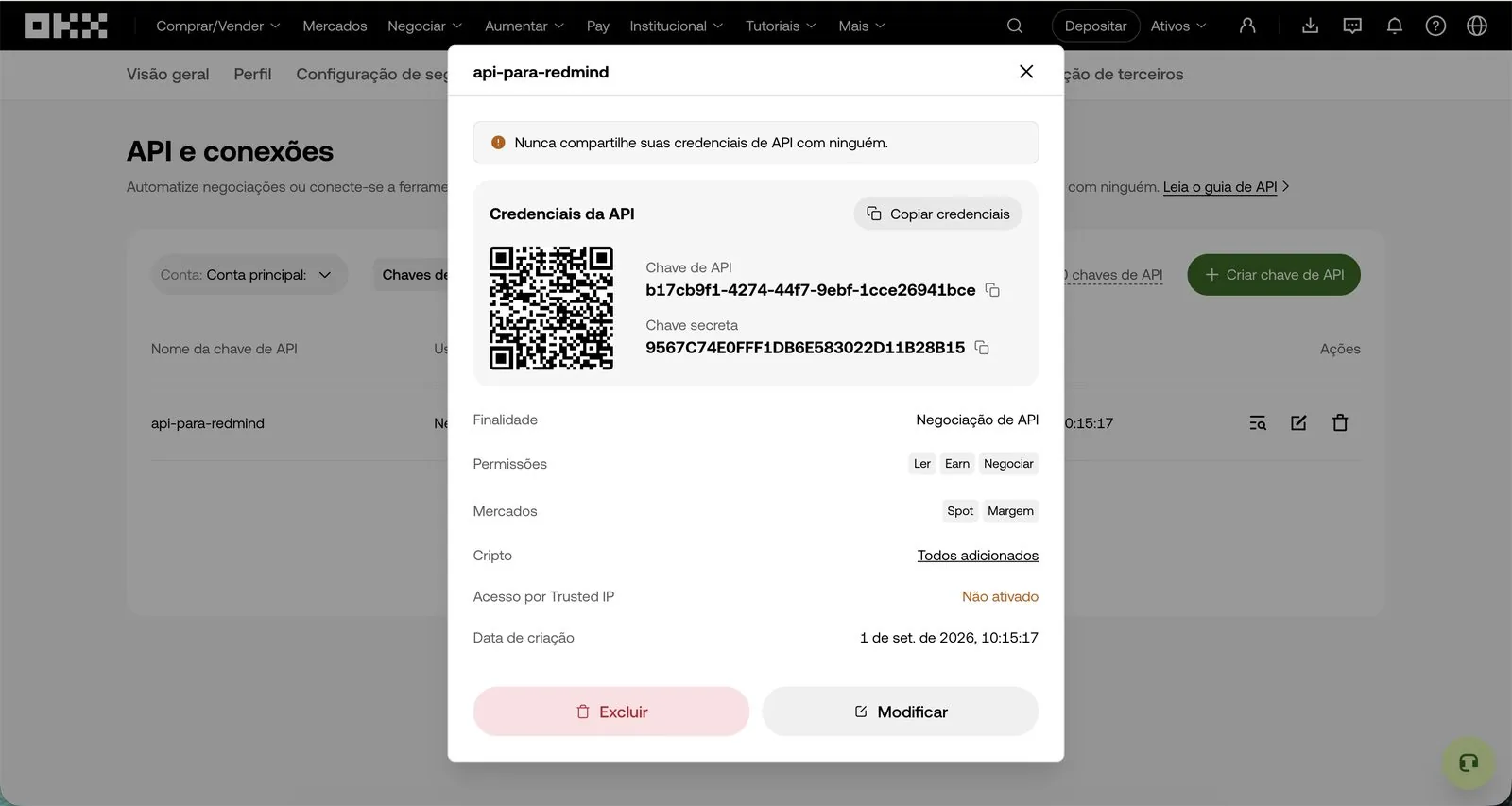
Copy the Chave de API (API key) and the Chave secreta (Secret key)
Step 13 of 15

Copy the Chave de API (API key) and the Chave secreta (Secret key)

The dialog shows the Credenciais da API (API credentials). Copy both values:

Chave de API (API key), for example b17cb9f1-4274-44f7-9ebf-1cce26941bce
Chave secreta (Secret key): a long code in uppercase letters

Use the Copiar credenciais (Copy credentials) button or copy each value individually.

Last chance
The full Secret key appears only on this screen. If you close it without copying it, you'll have to generate a new key. Store the credentials and the passphrase somewhere safe (a password manager).
Paste the credentials into RedMind
Step 14 of 15

Paste the credentials into RedMind

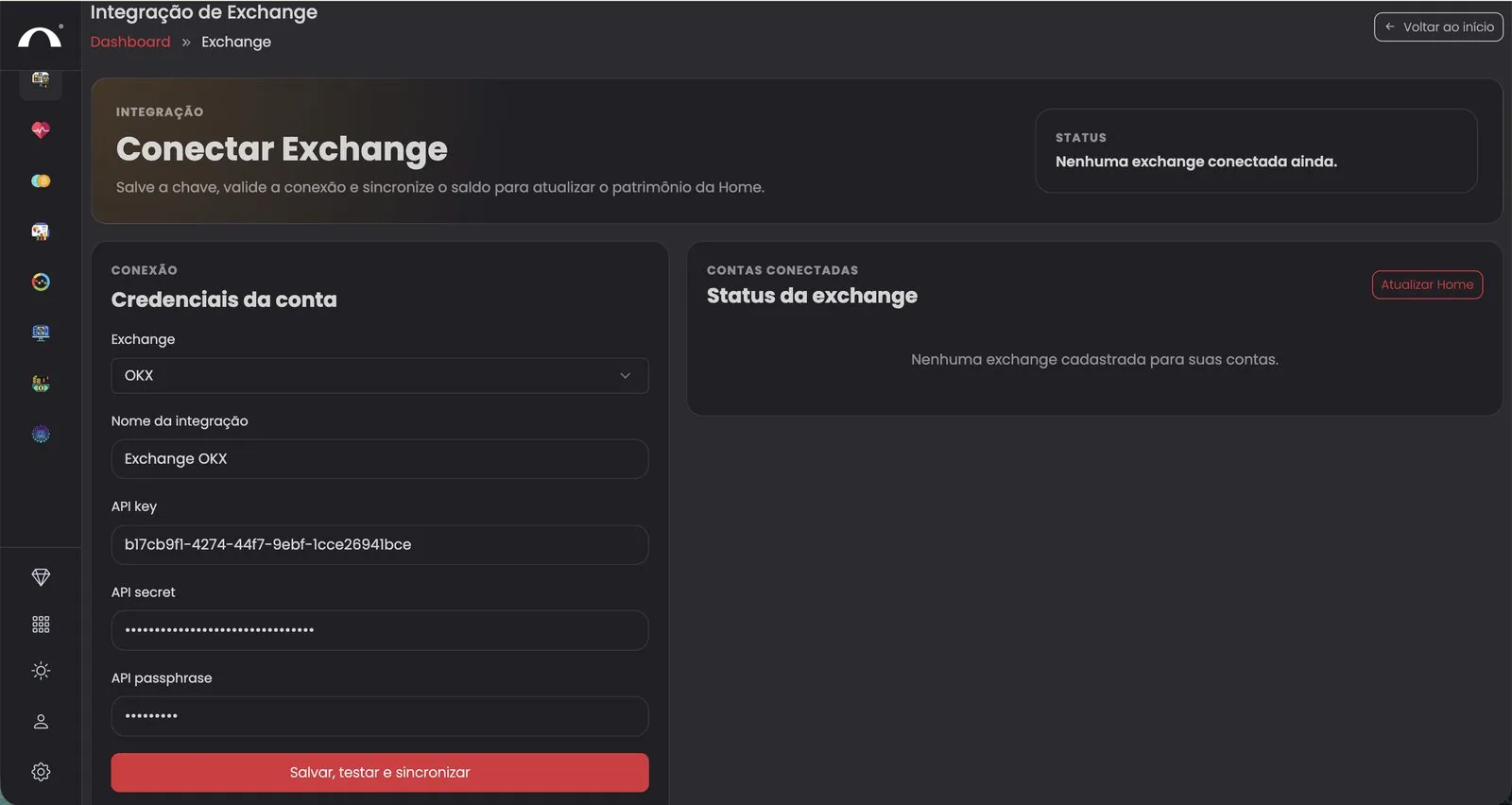
Go back to RedMind, to the Integração de Exchange (Exchange Integration) screen that you opened in Step 1.

Select OKX from the Exchange dropdown, enter an easy-to-remember name (Exchange OKX), and paste the three values:

API key: the Chave de API (API key) that you copied from OKX
API secret: the Chave secreta (Secret key)
API passphrase: the password that you created (the passphrase from Step 8)

Click the red Salvar, testar e sincronizar (Save, test and sync) button.

OKX connected successfully
Step 15 of 15

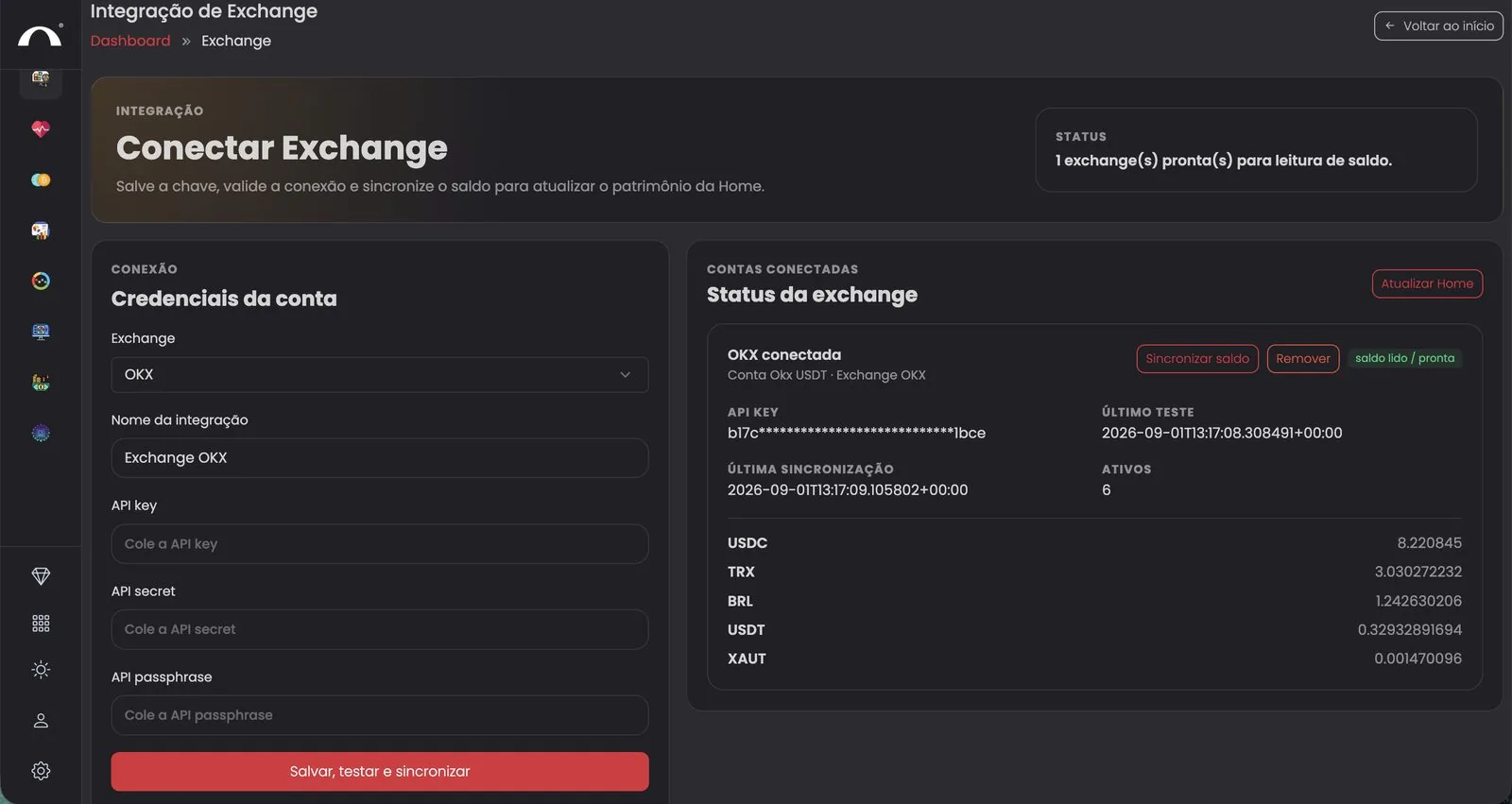
OKX connected successfully

Within seconds, the right panel shows OKX conectada · saldo lido / pronta (OKX connected · balance read / ready). You see your assets and balances listed (USDC, TRX, BRL, USDT, XAUT, etc.) and the status at the top: 1 exchange(s) pronta(s) para leitura de saldo (1 exchange(s) ready to read balances).

Your exchange is now integrated. Next step: create your first portfolio with the Autopilot.

Other exchanges
The process for Binance, Bitpanda, Mercado Bitcoin, and Foxbit is similar. Only the field names change (Binance uses "System Generated" with no passphrase, MB uses "TAPI ID/Secret", and so on). Always uncheck the Withdraw permission.