R
RedMind Tutorials
Start here

Create a RedMind account

From your first visit to paying for your plan, including the institutional form and activating your account with a promo code.

1 of 10 steps • 10% complete
Go to redmind.global and click Solicitar acesso (Request access)
Step 1 of 10

Go to redmind.global and click Solicitar acesso (Request access)

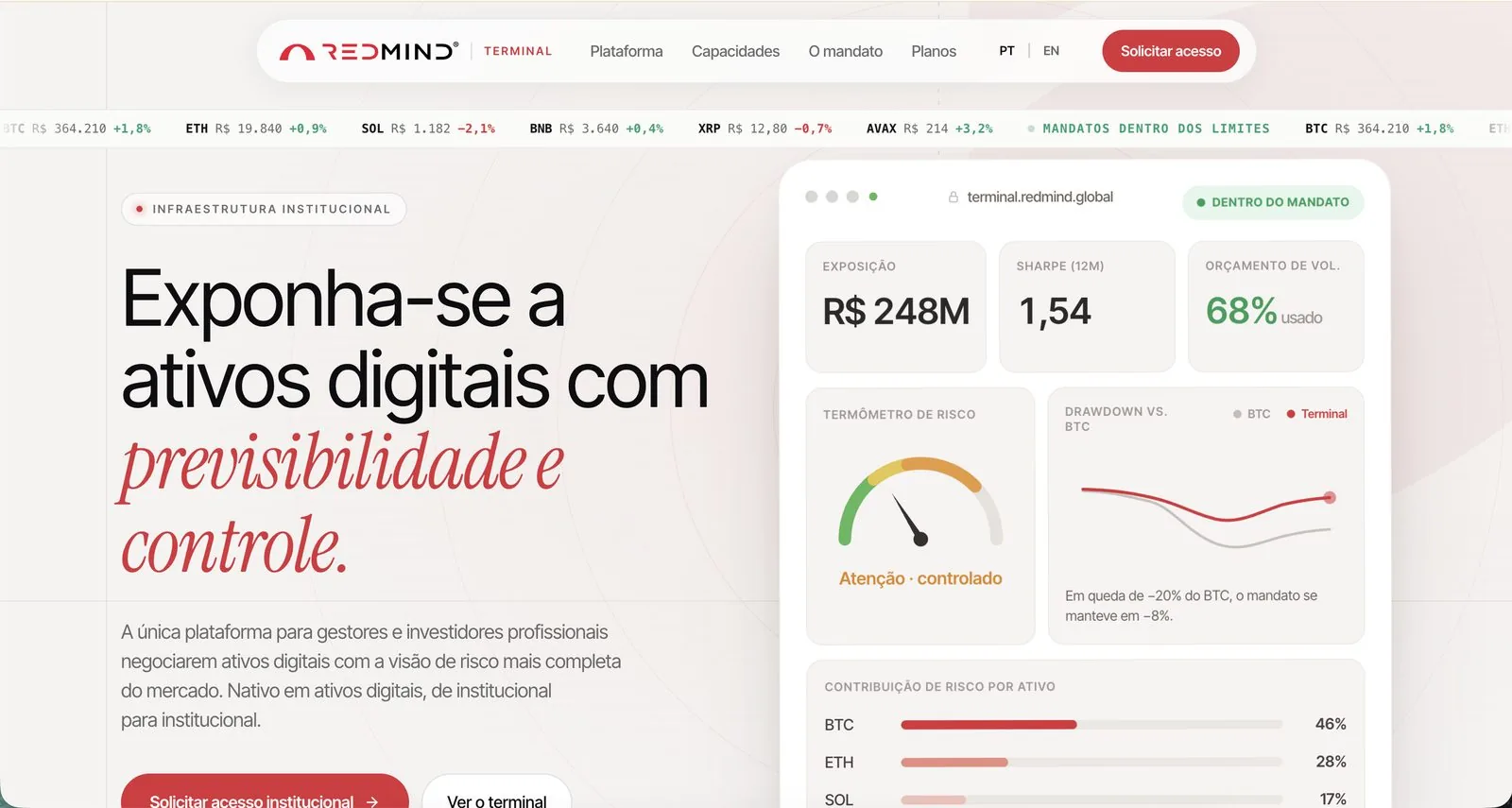
In your browser, go to redmind.global. In the top-right corner, click the red Solicitar acesso (Request access) button.

Access to the RedMind Terminal is by invitation: the team reviews each request before granting access.

Confirm on the institutional access landing page
Step 2 of 10

Confirm on the institutional access landing page

You land on the red page "A próxima curva são os ativos digitais" (The next curve is digital assets). Click Solicitar acesso (Request access) again to start the form.

Tip
The form takes about 2 minutes. Have your operation's details on hand.
Fill out the institutional form (7 steps)
Step 3 of 10

Fill out the institutional form (7 steps)

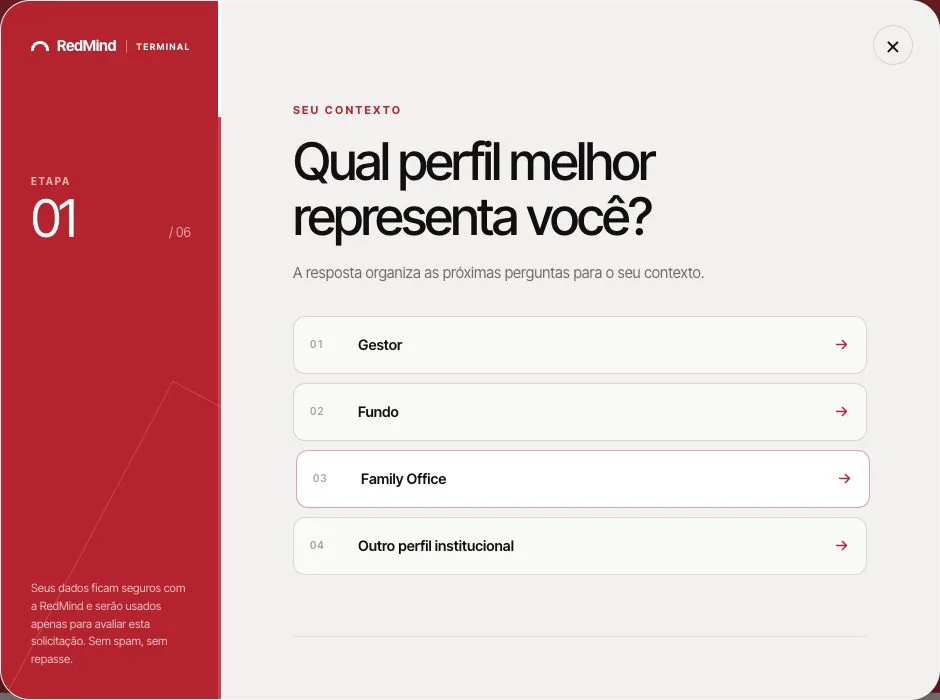
The form has 7 quick questions that help the team understand your context. Answer each one and click Continuar (Continue) when you're done:

1. The profile that best describes you (Manager · Fund · Family Office · Other).
2. Your priority for the Terminal (consolidate exchanges · build a portfolio · validate risk · execute and monitor · evaluate integrations · other).
3. Your organization's name (or "Atuo de forma independente", meaning "I work independently").
4. Your assets under management range.
5. Your full name.
6. Your preferred work email.
7. How you'd like to receive our reply (email or WhatsApp).

The image next to this text shows a sample form screen (step 01, choosing your profile).

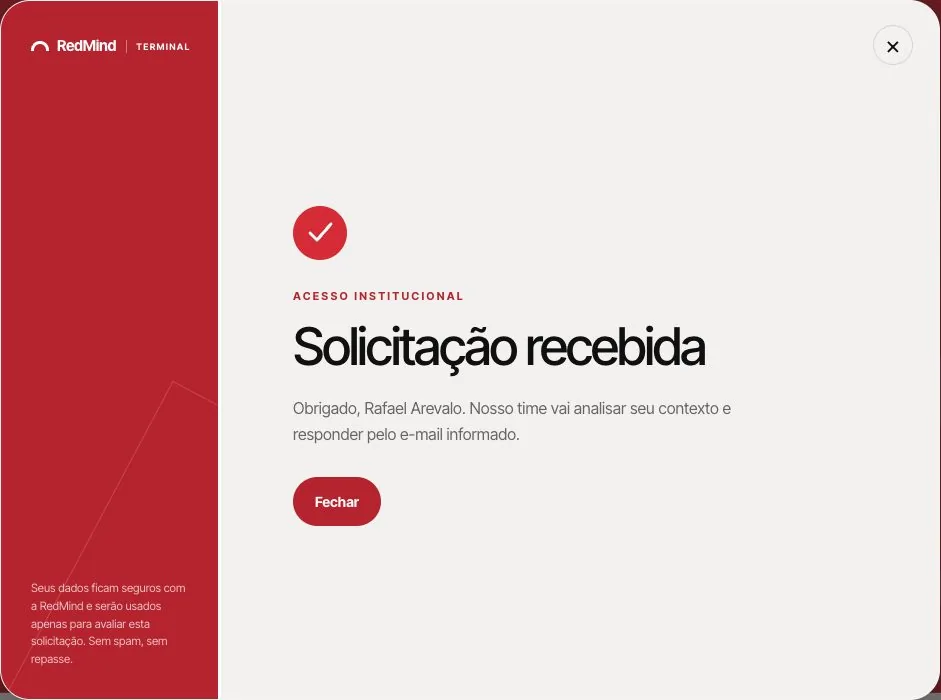
Request received: wait for the approval email
Step 4 of 10

Request received: wait for the approval email

That's it: your request has been sent. The RedMind team will review your context and reply to the email address you provided.

Response time
You'll receive the approval email within 24 hours. This email contains the link to create your account. Once you receive it, continue this tutorial from the next step.
Sign up
Step 5 of 10

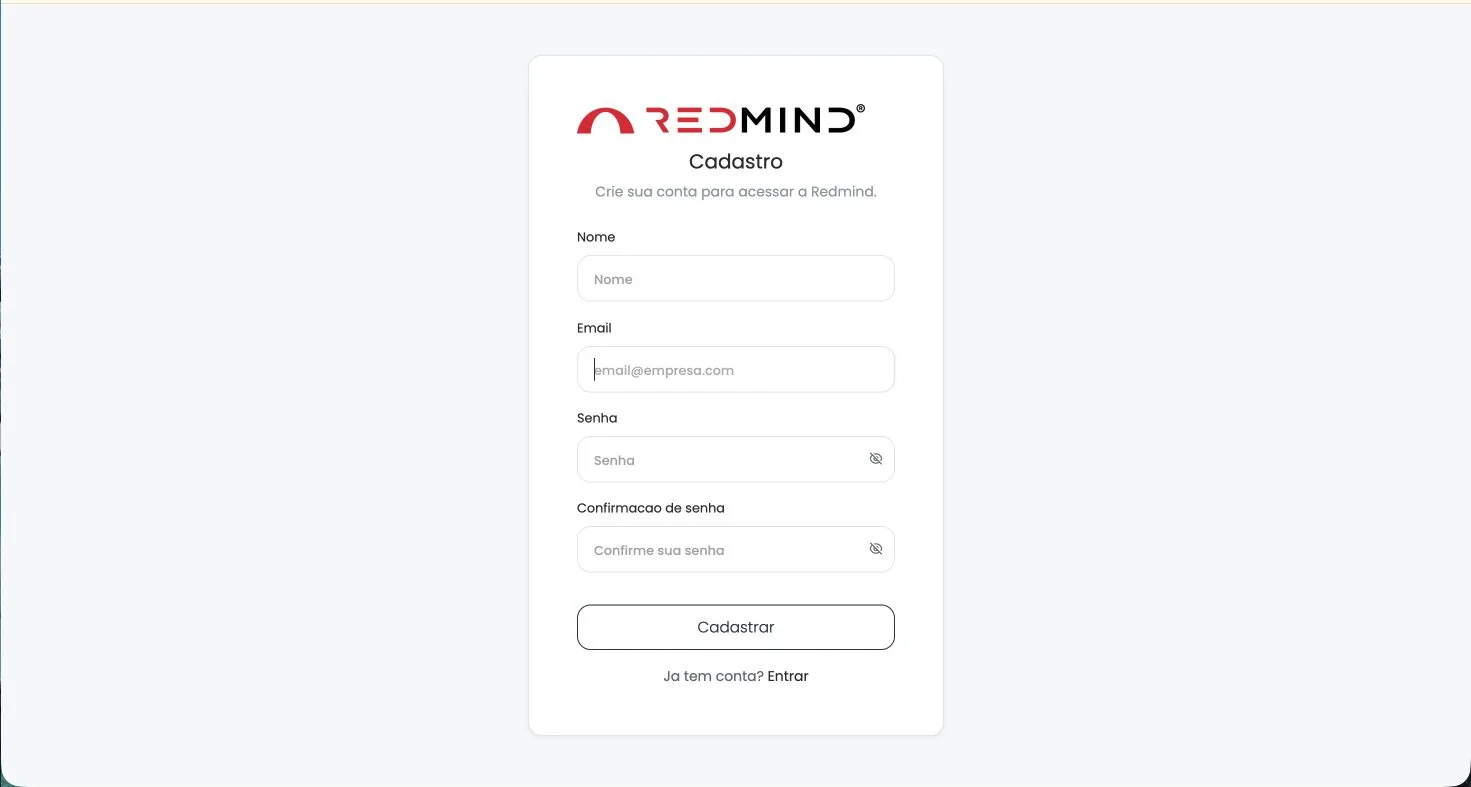
Sign up

When you click the link in the approval email, you're taken to the Cadastro (Sign up) screen. Fill in:

Nome (Name) · Email · Senha (Password) · Confirmação de senha (Confirm password).

Click Cadastrar (Sign up).

Security
Use a strong password of at least 12 characters that includes uppercase and lowercase letters, numbers, and symbols. Consider using a password manager: RedMind will hold access to your exchanges.
Log in with the credentials you created
Step 6 of 10

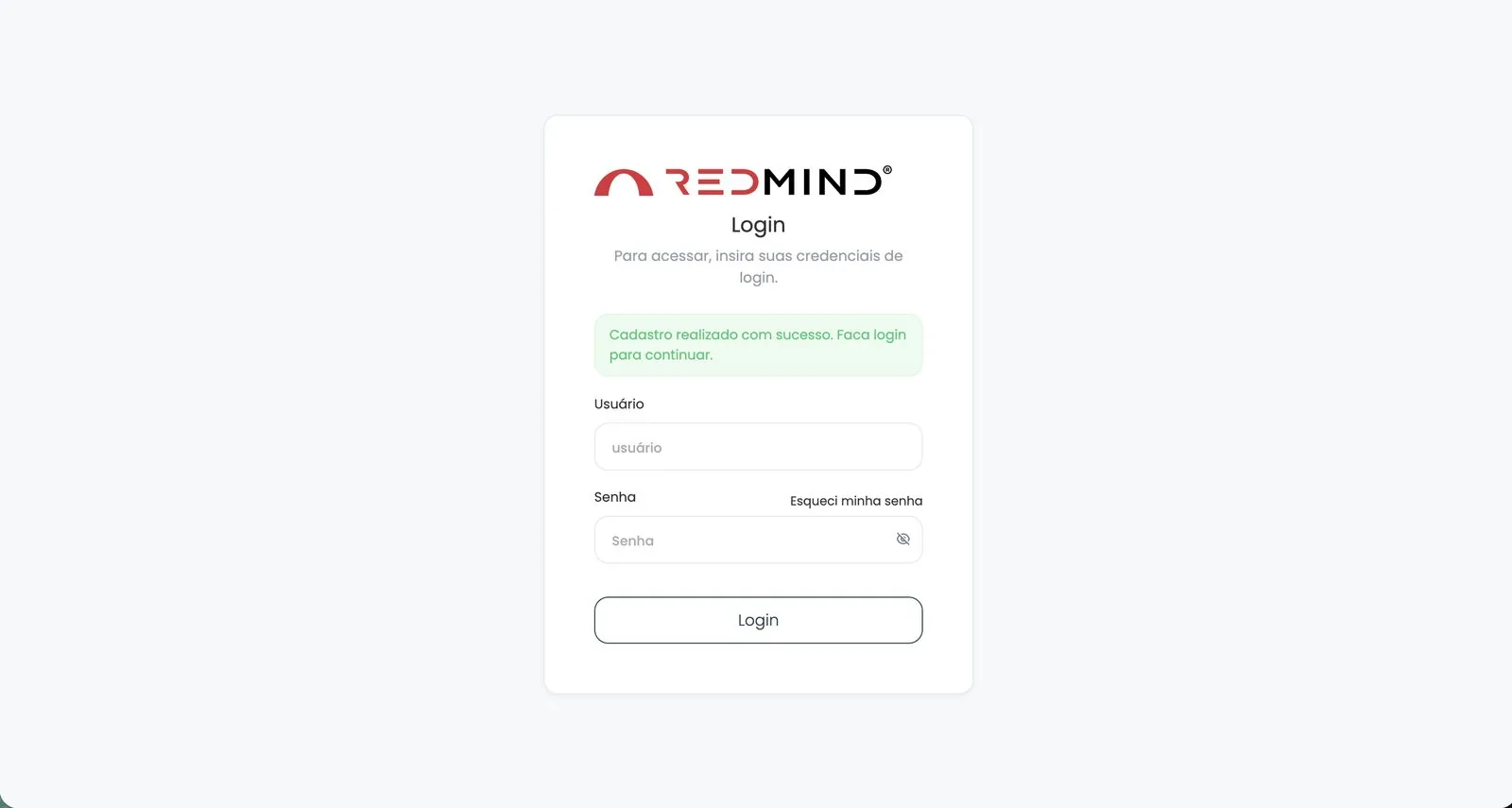
Log in with the credentials you created

The login screen opens with the green message "Cadastro realizado com sucesso" (Sign-up completed successfully). Enter your Usuário (Username) and Senha (Password), then click Login.

Choose a plan to unlock the platform
Step 7 of 10

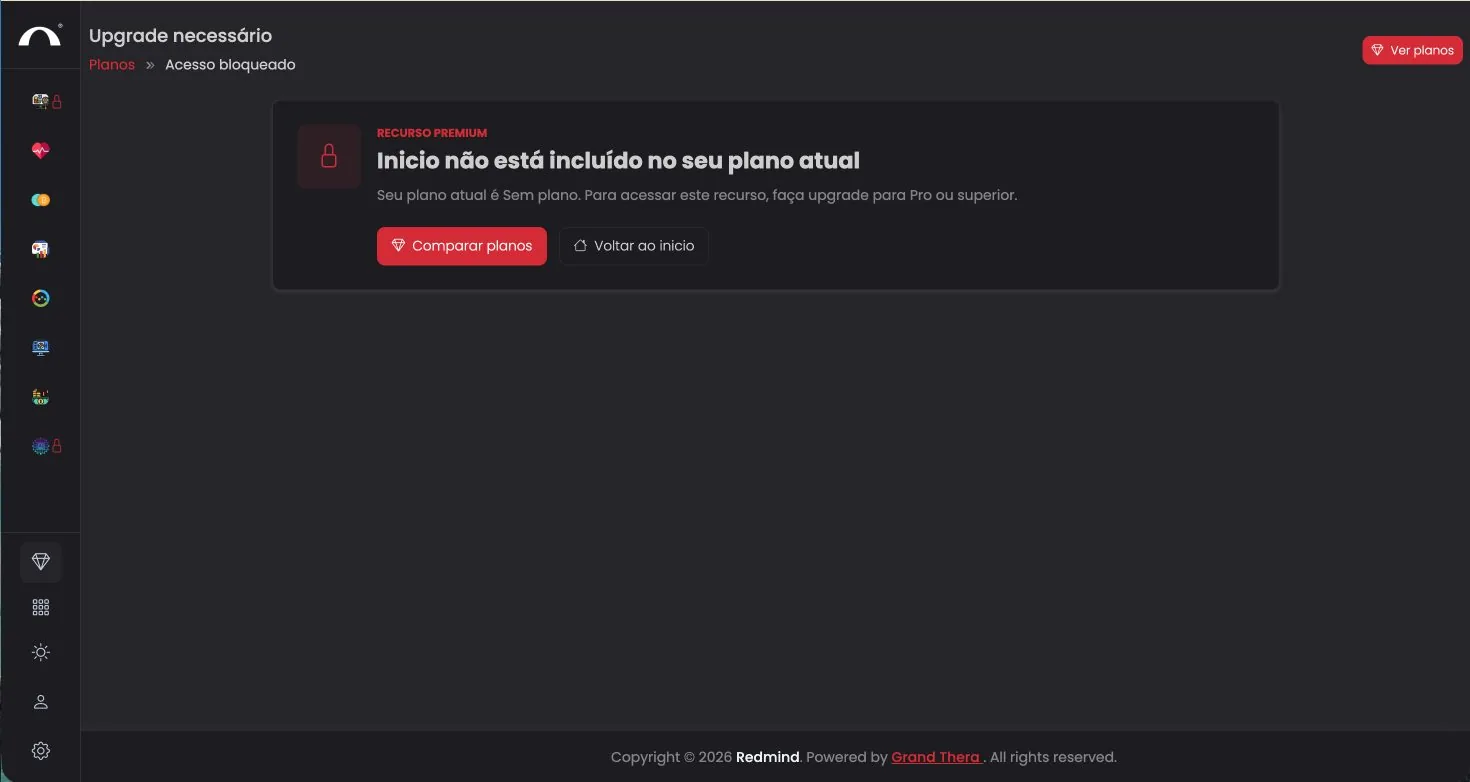
Choose a plan to unlock the platform

The first time you log in, you see the Upgrade necessário (Upgrade required) notice, because your account doesn't have an active plan yet. Click Comparar planos (Compare plans) or Ver planos (View plans) in the top-right corner.

Choose the Elite Annual plan (R$ 2,990)
Step 8 of 10

Choose the Elite Annual plan (R$ 2,990)

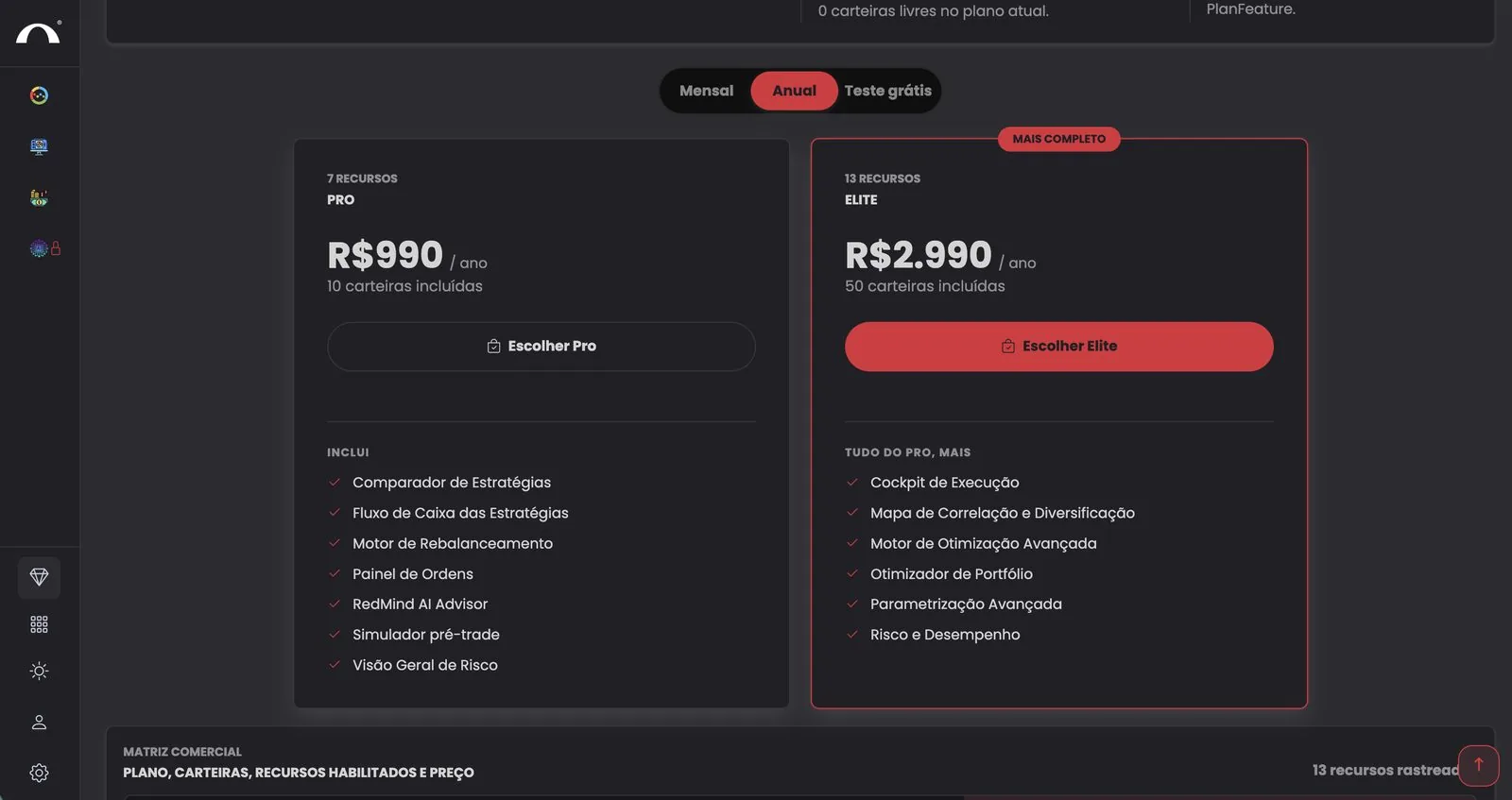
Select the Anual (Annual) tab at the top (the discount over monthly billing is significant) and click Escolher Elite (Choose Elite): R$ 2,990/year.

Elite is the most complete plan. It includes everything in Pro, plus the Execution Cockpit, Correlation Map, Advanced Optimization Engine, Portfolio Optimizer, Advanced Parameterization, and Risk and Performance.

Don't worry about the price
In the next step, you'll use a 100% discount promo code that we'll share with you. The final amount will be R$ 0.
Apply the promo code BETATESTERS100 and check out
Step 9 of 10

Apply the promo code BETATESTERS100 and check out

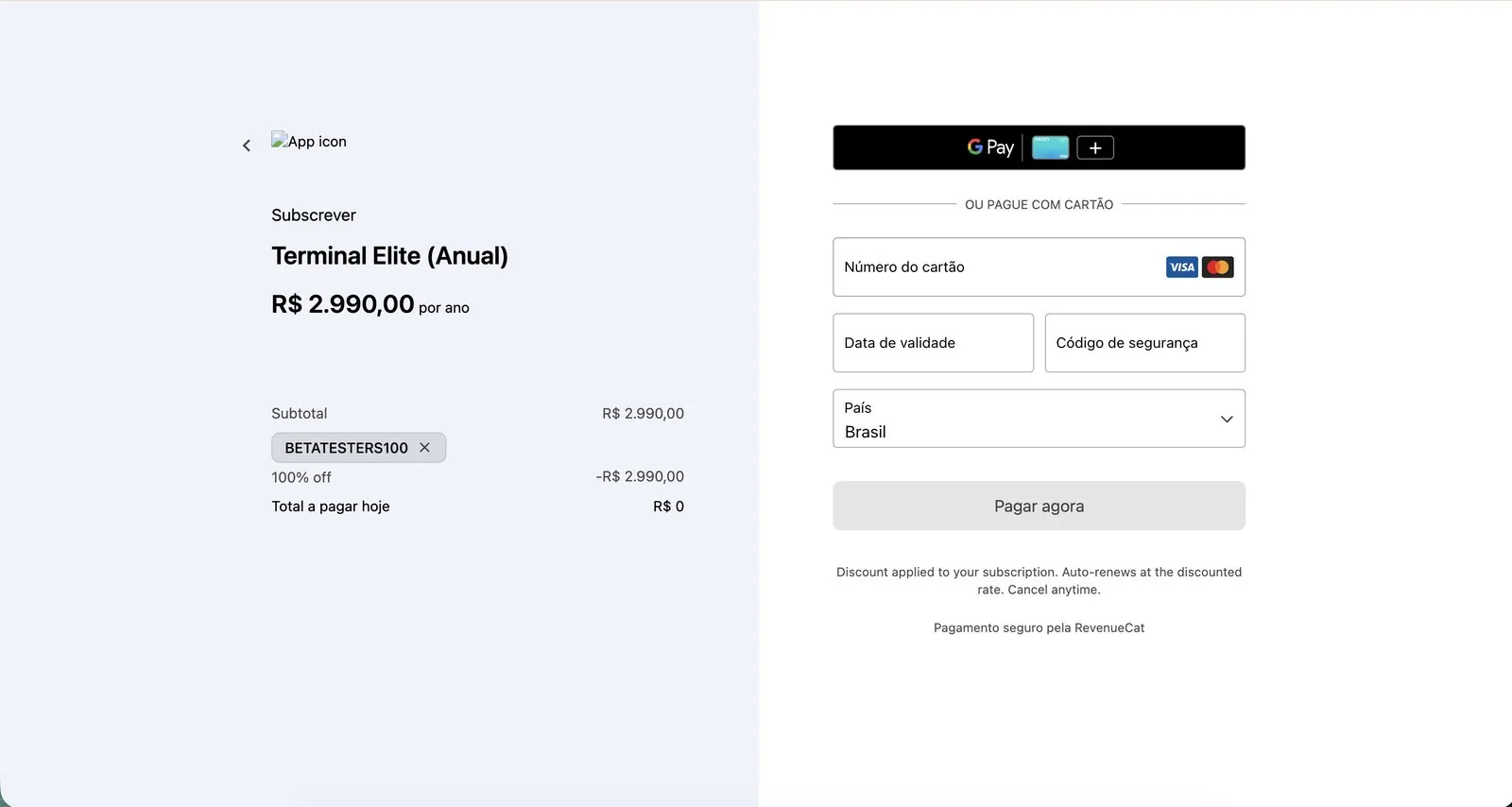
At checkout, enter the promo code BETATESTERS100 in the coupon field and click Validar promocode (Validate promo code). The 100% discount is applied, and Total a pagar hoje (Total due today) drops to R$ 0.

Even though the total is zero, you must enter your credit card details to complete the purchase: card number, expiration date, security code, and country.

Click Pagar agora (Pay now).

Important: about the card
The card is required only to complete the payment gateway process. You won't be charged anything as long as the BETATESTERS100 promo code is applied.
Payment complete: welcome to RedMind
Step 10 of 10

Payment complete: welcome to RedMind

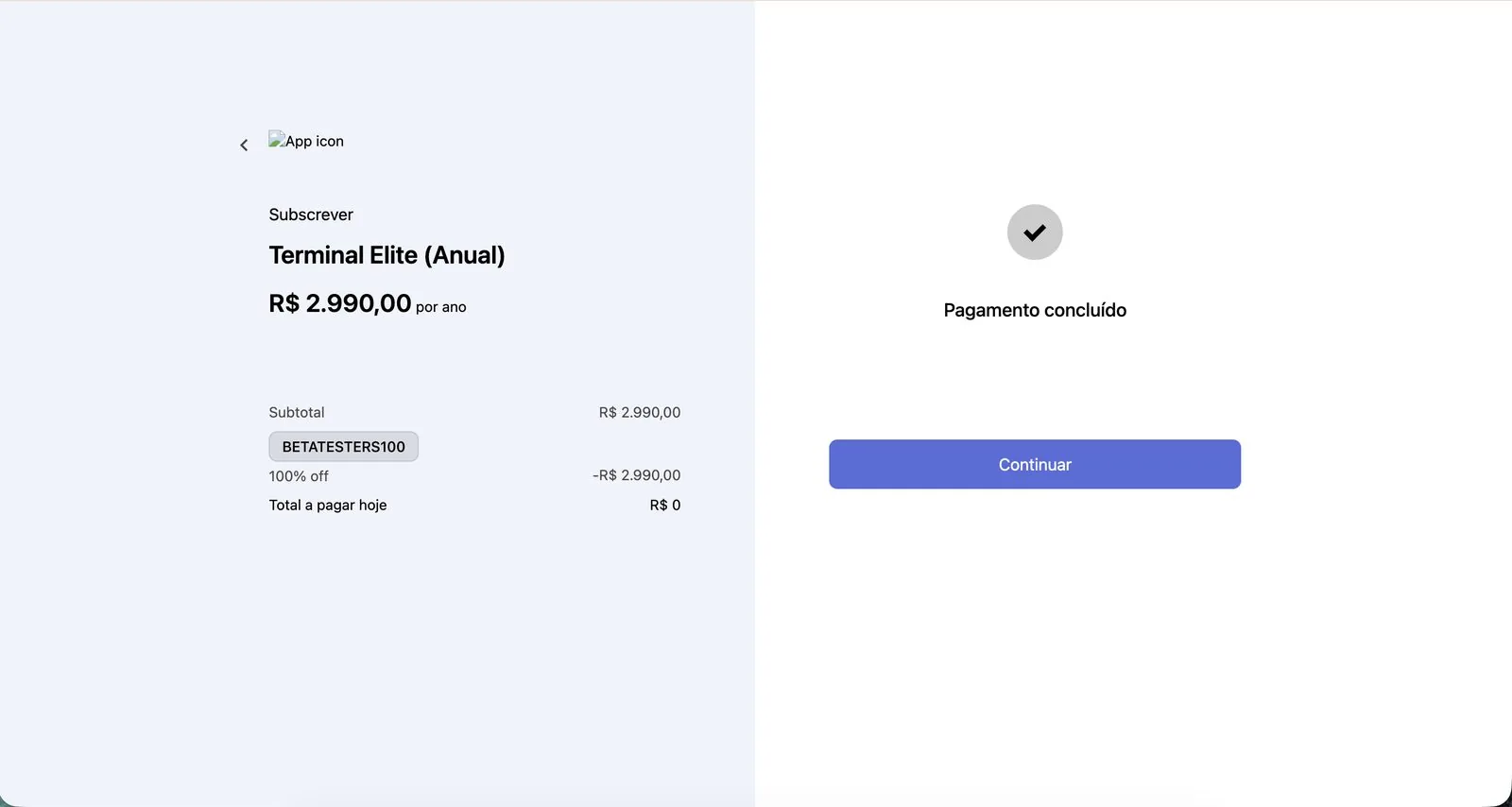
You see the Pagamento concluído (Payment complete) confirmation. Click Continuar (Continue) to enter the platform.

Next step: connect your first exchange to start trading.